What's new in 0.19 since 0.17
DeckBridge 0.18.0 (October 1) and 0.19.0 (October 5) are out. A phone can now act as a deck. Other tools can push text onto side keys. Idle decks can dim, and the Web UI got a full redesign.
All screenshots below come from the real Web UI in mock mode. A test client stands in for the Elgato app, and the key art is placeholder. "Before" shots come from 0.17.0, "after" shots from 0.19.0.
Use a phone or tablet as a deck
New in 0.18. A phone or tablet browser becomes one more 15-key deck. The Elgato app sees it as a normal Network Dock. Tap a key to run its action. Hold a key for long-press actions.
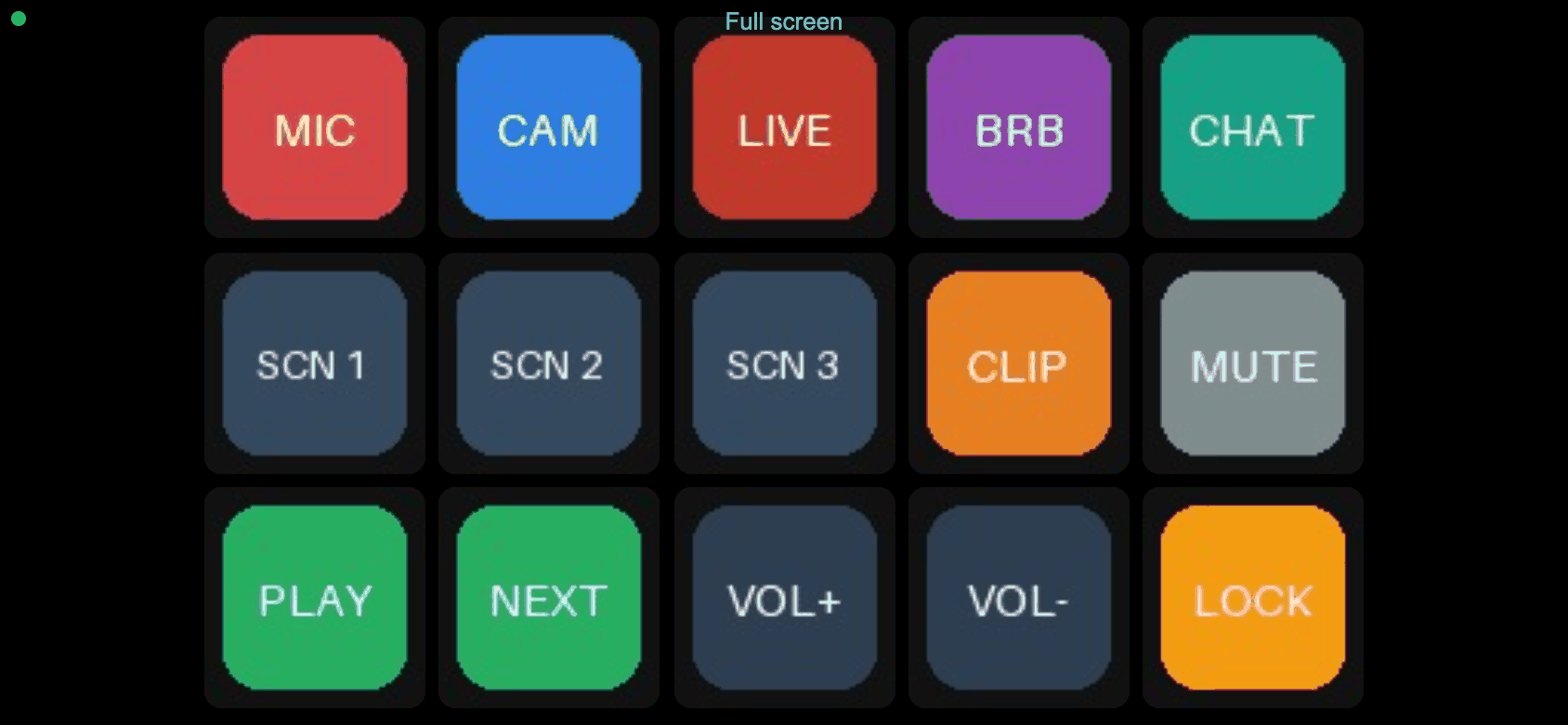
The feature is off by default. Turn it on in Settings → Browser deck, then press Pair a device. Open the shown address on the phone and enter the 6-digit code. A QR code is optional; it needs a small download from jsDelivr.
The Elgato app pairs one dock per IP address. Need another address? walks you through adding one. The connection uses plain HTTP, so use a trusted network. See Browser deck.
Push text onto side keys
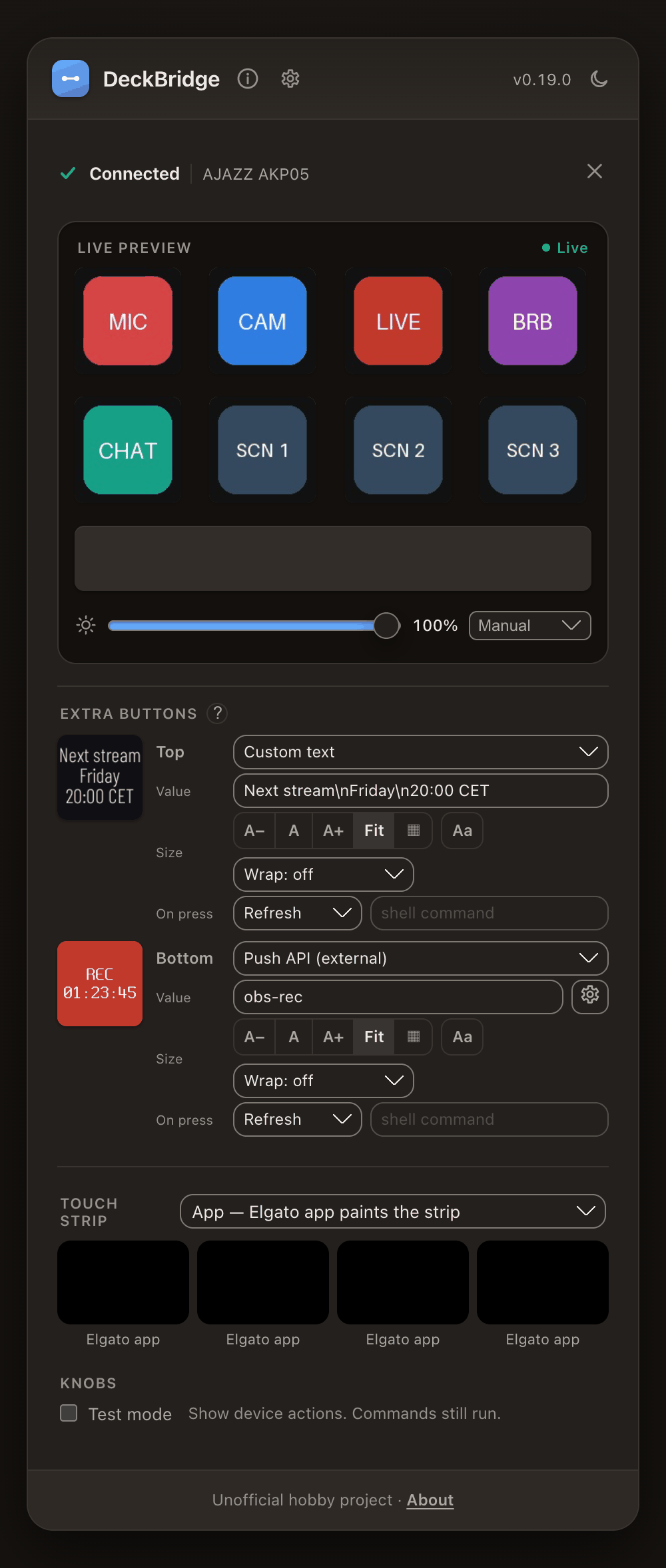
New in 0.18. Scripts and other tools can now write text onto side keys and touch-strip zones. Pick Push API (external) as the widget and enter a channel name. Create a token in Settings → Push API. Then send one HTTP request:
curl -X POST http://127.0.0.1:3000/api/push/obs-rec \
  -H "Authorization: Bearer $DECKBRIDGE_PUSH_TOKEN" \
  -H "Content-Type: application/json" \
  -d '{"text": "REC\n01:23:45", "background": "#c0392b"}'
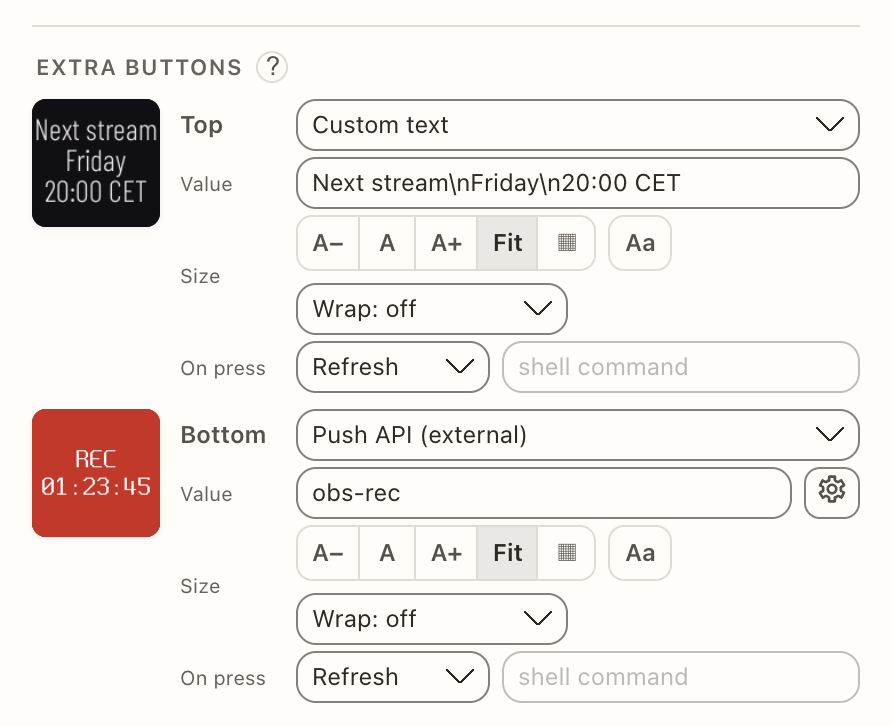
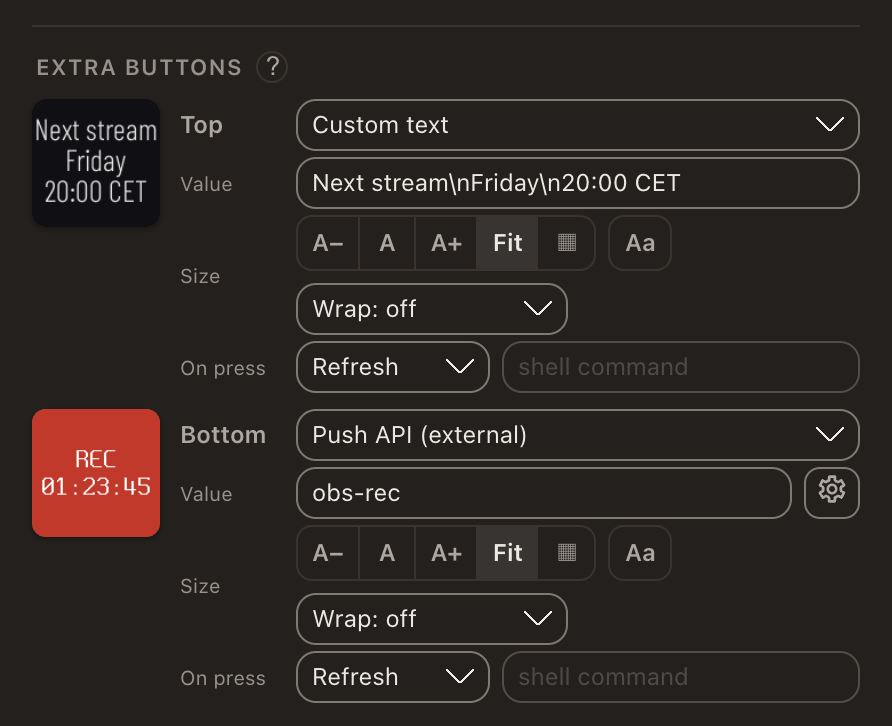
Values expire after a time-to-live, ten minutes by default. The deckbridge push command does the same from a shell. The repository has examples for Home Assistant and an OBS recording timer. See Push API.
Standby and burn-in care
New in 0.19. Cheap LCD panels can keep a ghost of a static image. A bright deck also glares at night. Settings → Standby & burn-in care now handles both, per deck:
- Dim when idle lowers brightness after a set time without input.
- Screen off follows as a second idle stage.
- Wake press decides if the first press only wakes the deck.
- When the Elgato app is away, the deck keeps its images, shows a dim clock, or goes dark.
- Night mode caps brightness between two times.
- Pixel shift moves DeckBridge's own widgets by 1 px every five minutes.
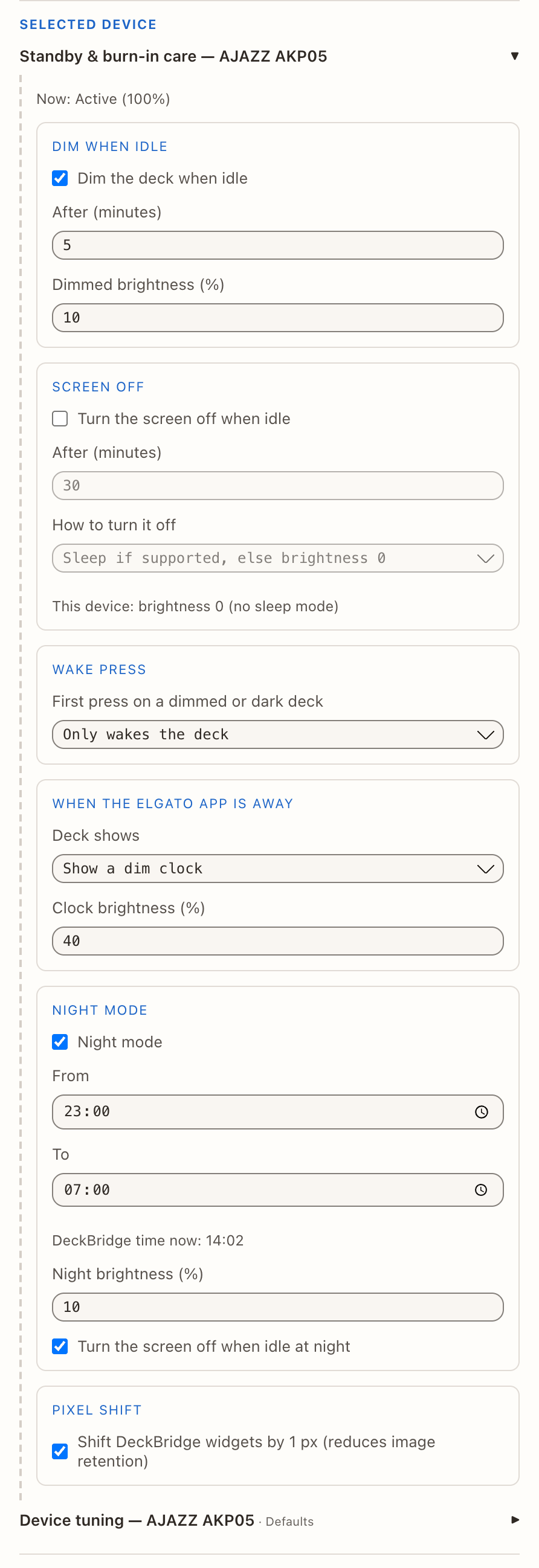
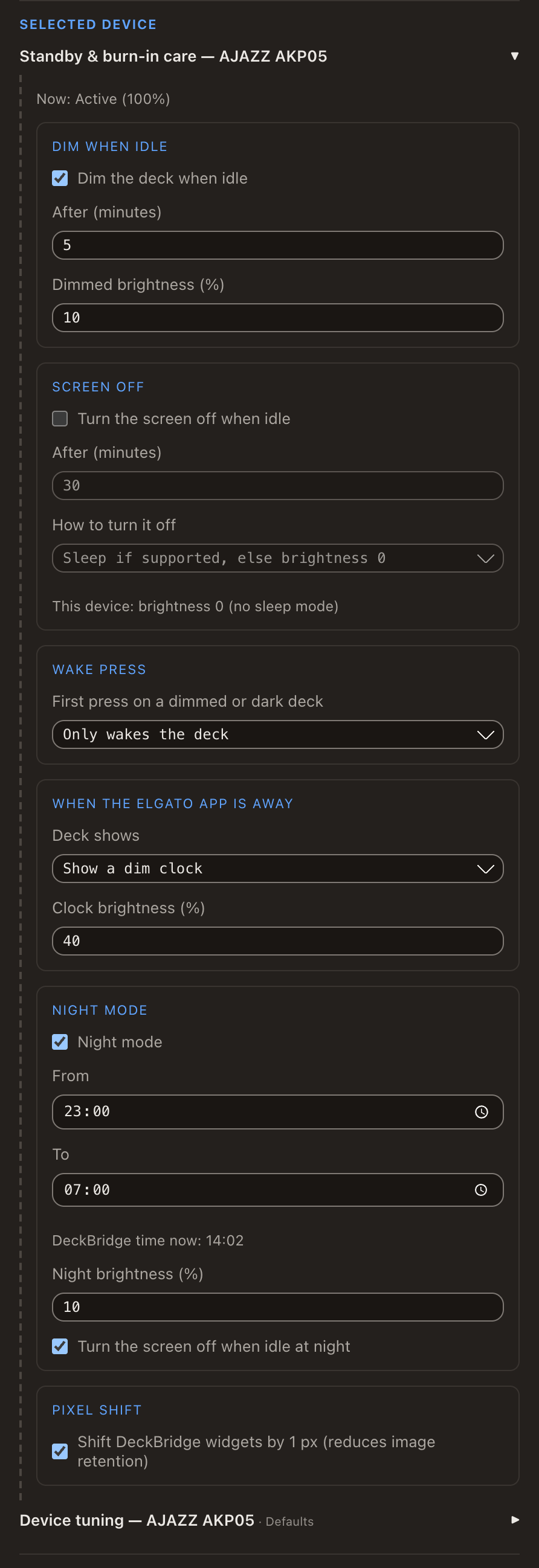
Everything is off by default. No model uses hardware sleep yet, so screen off writes brightness 0. See Standby and burn-in care.
Slim font for widget text
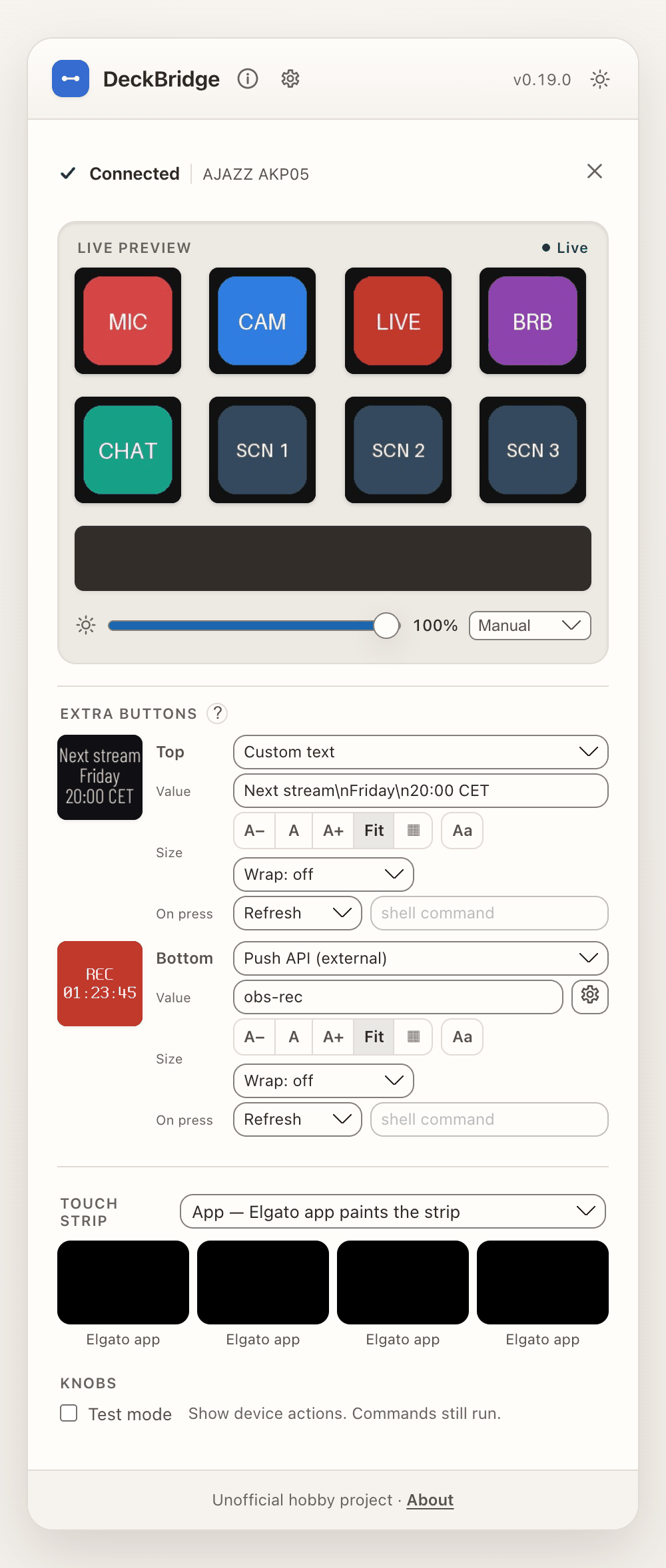
New in 0.19. Side keys and strip zones get a third font, Slim. It is an anti-aliased Barlow Condensed, so longer text stays readable. Tight lines packs rows closer, and line gap now goes down to −8 px.


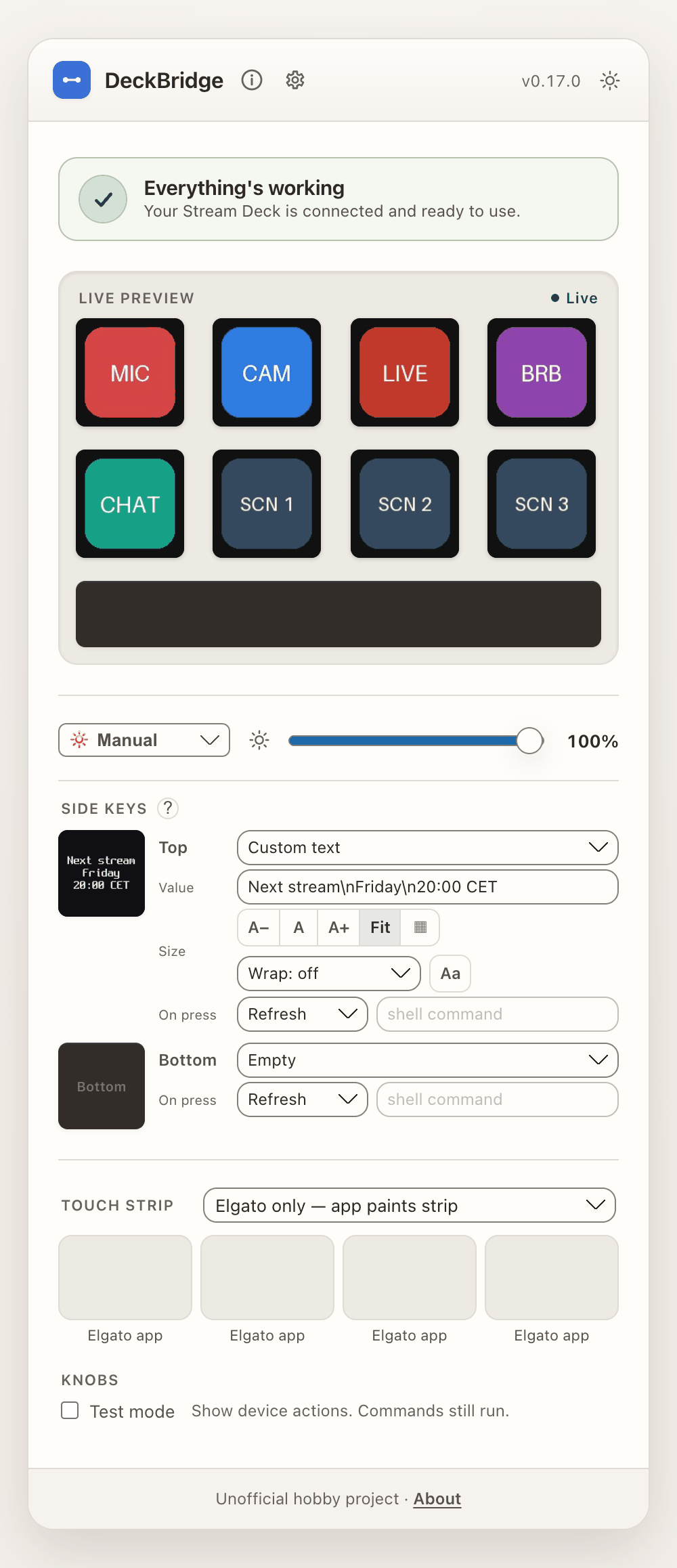
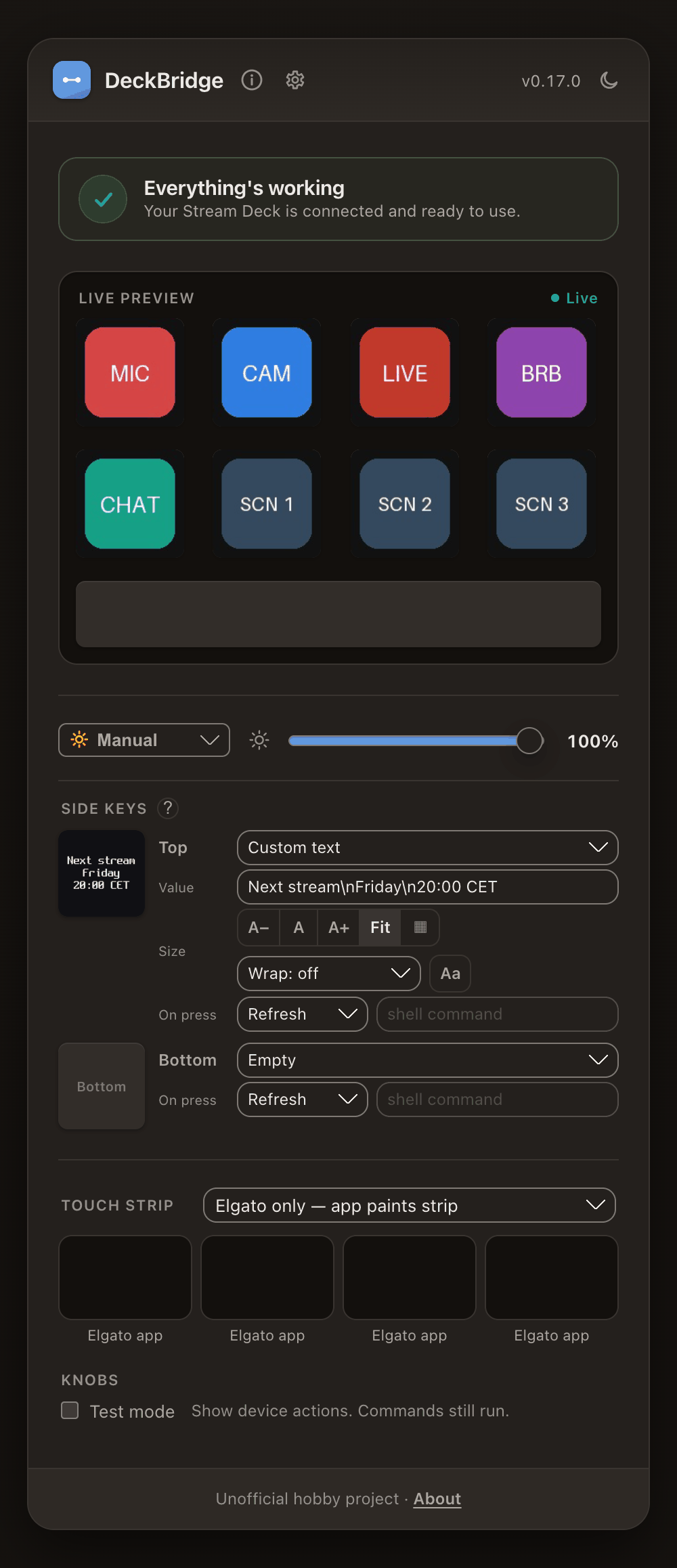
Left: 0.17, default font. Right: 0.19, Slim with tight lines. Both use Fit.
Older builds drop side-key settings that use Slim or a negative line gap. Keep this in mind before you downgrade. See Text style.
Clearer pairing
0.19 replaces the long instruction card with three steps: device, DeckBridge, app. One question comes first: Already paired? Answer No and only the manual pairing details open. The local-IP case moves behind Elgato app on this computer?
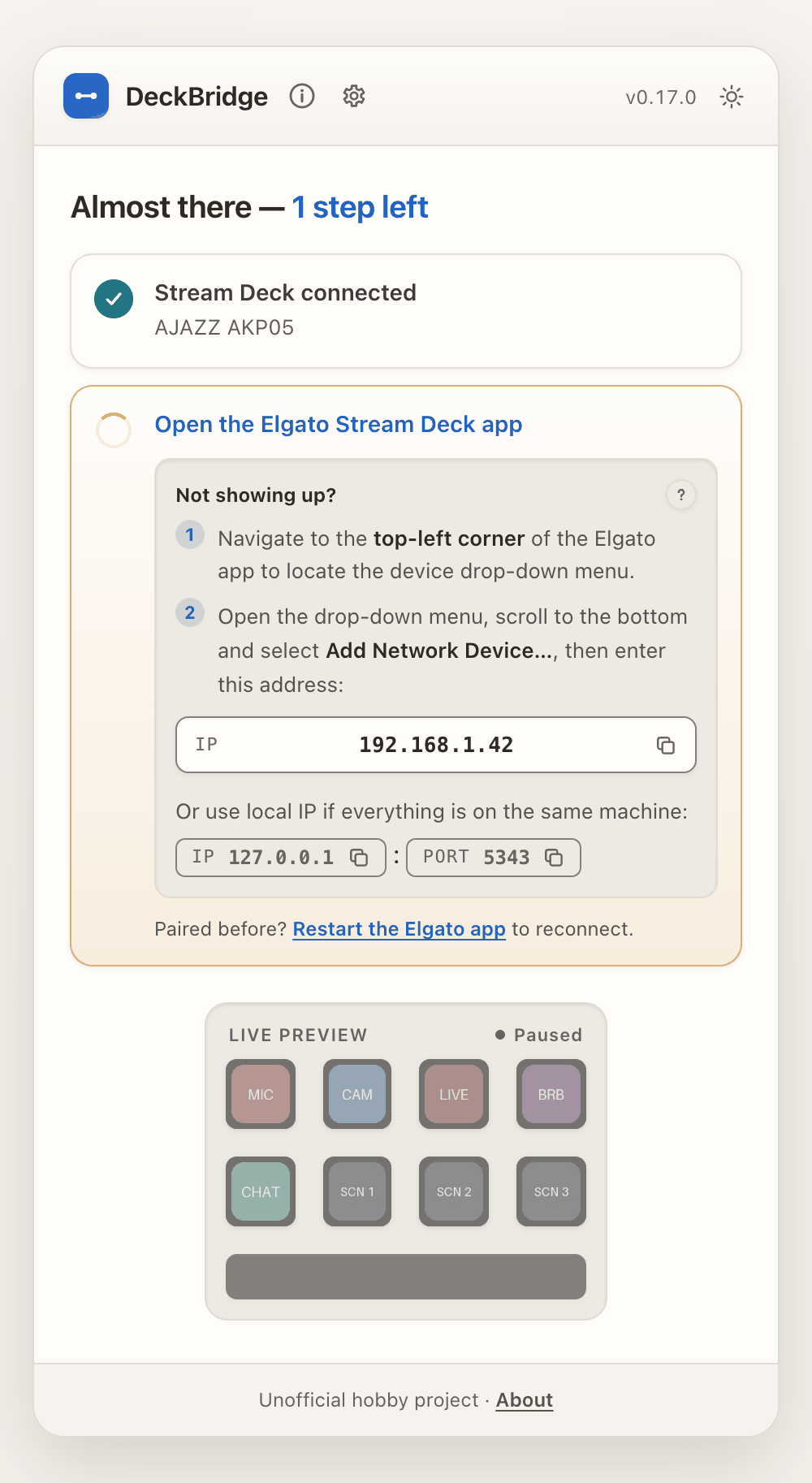
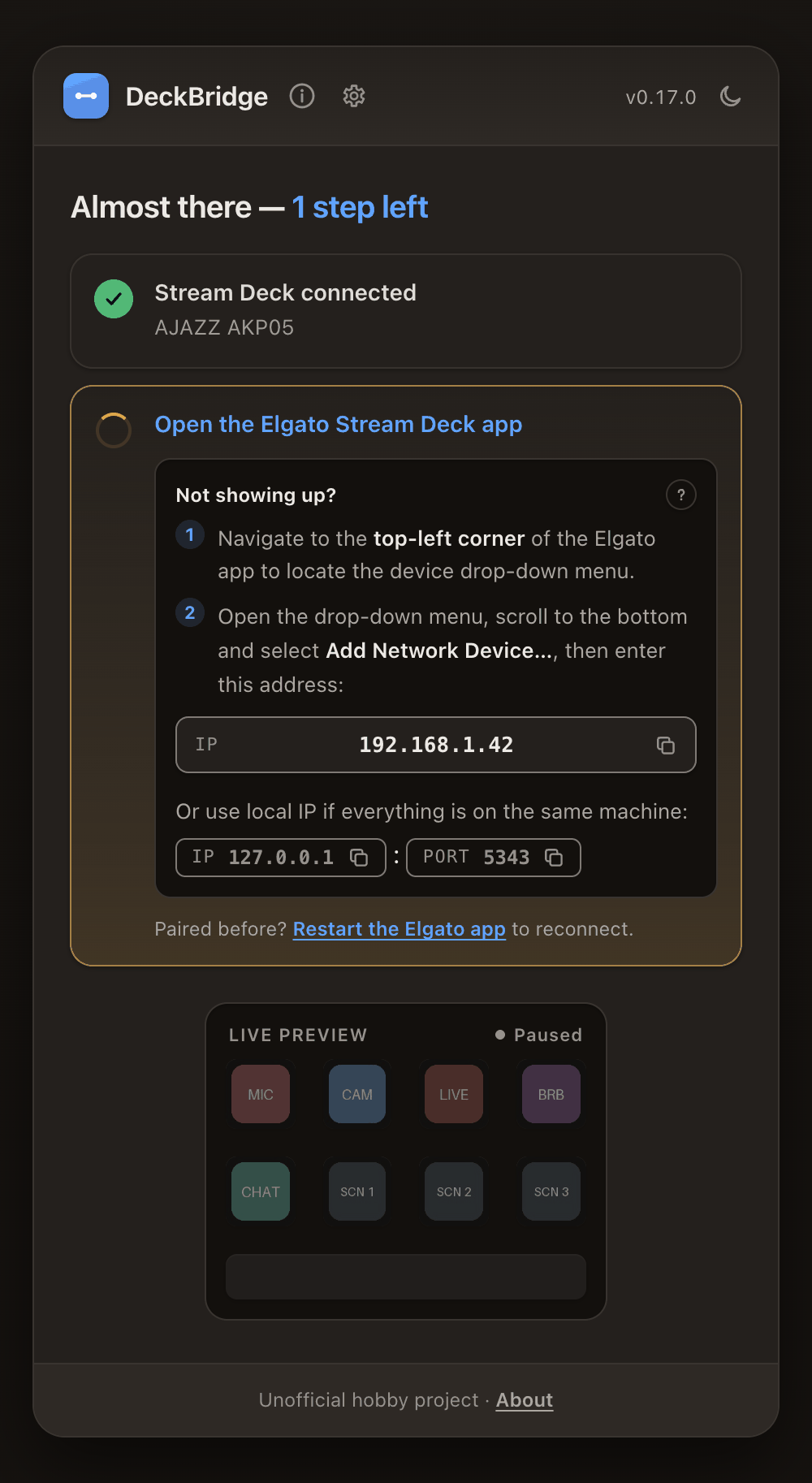
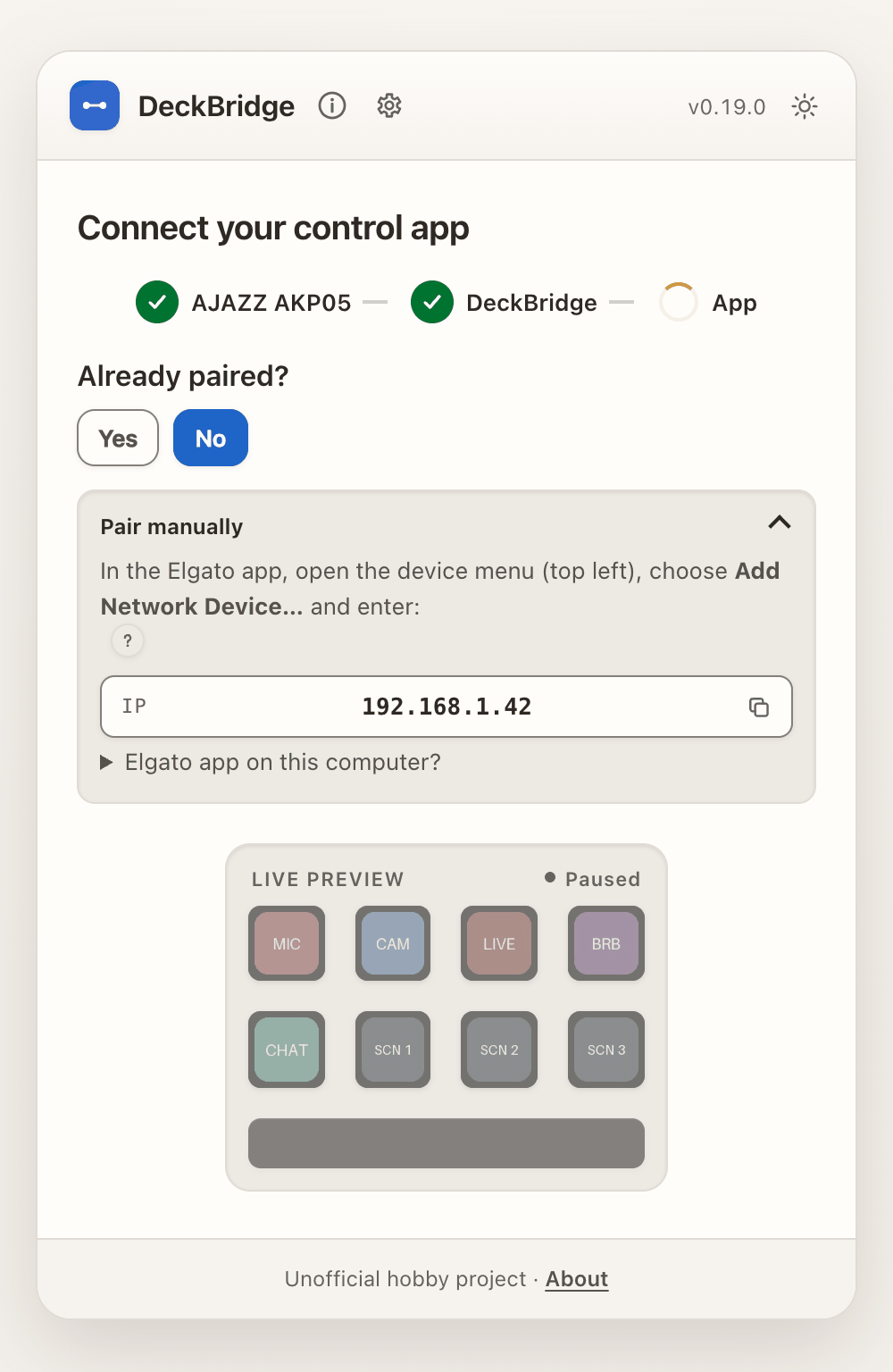
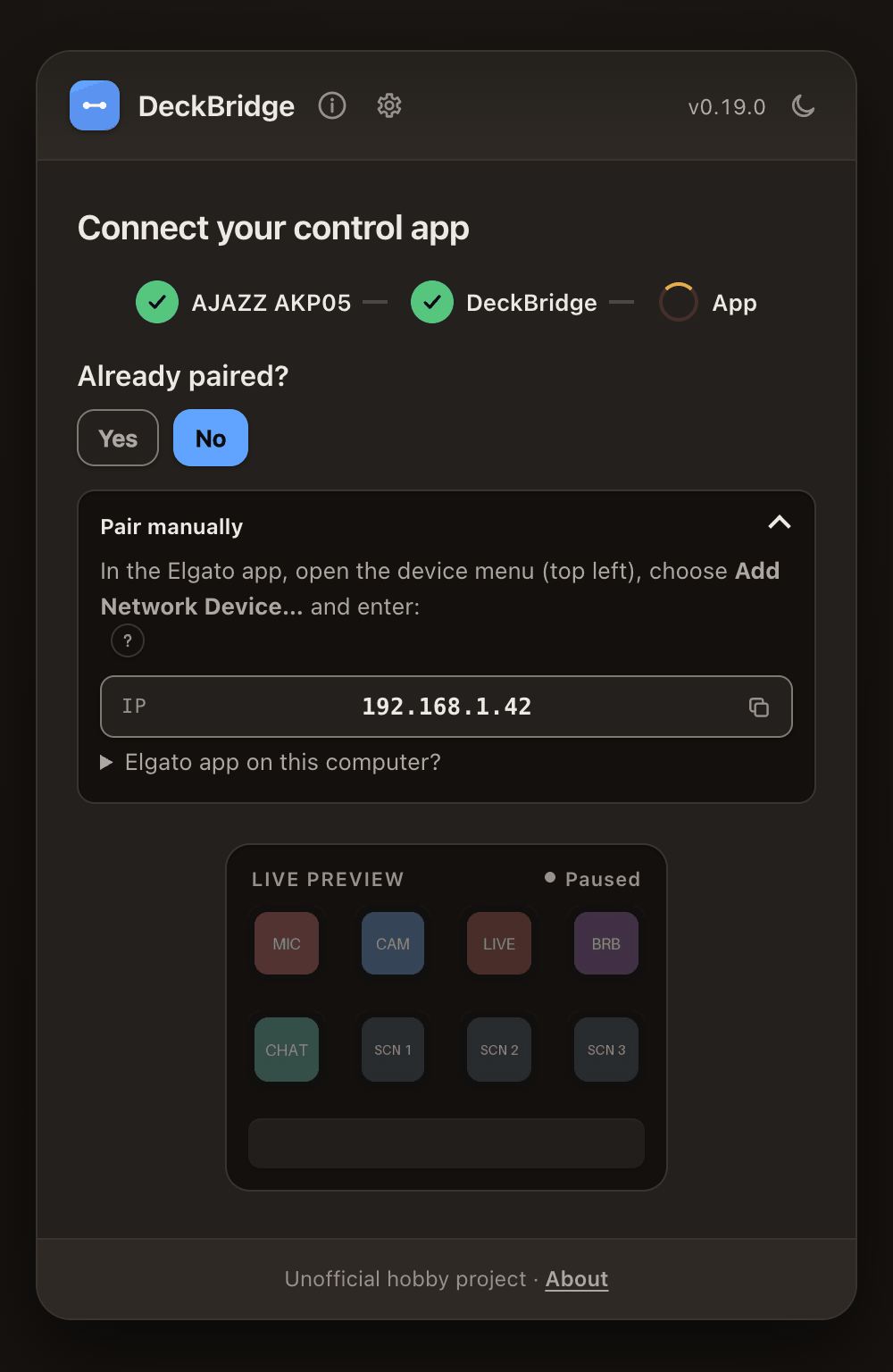
Stale connections now get their own feedback, and the layout works down to 320 px.
A quieter main screen
Once connected, the big green banner becomes one dismissible status row. Brightness moves into the live preview card. "Side keys" is now Extra buttons, and the touch-strip modes use plainer names.
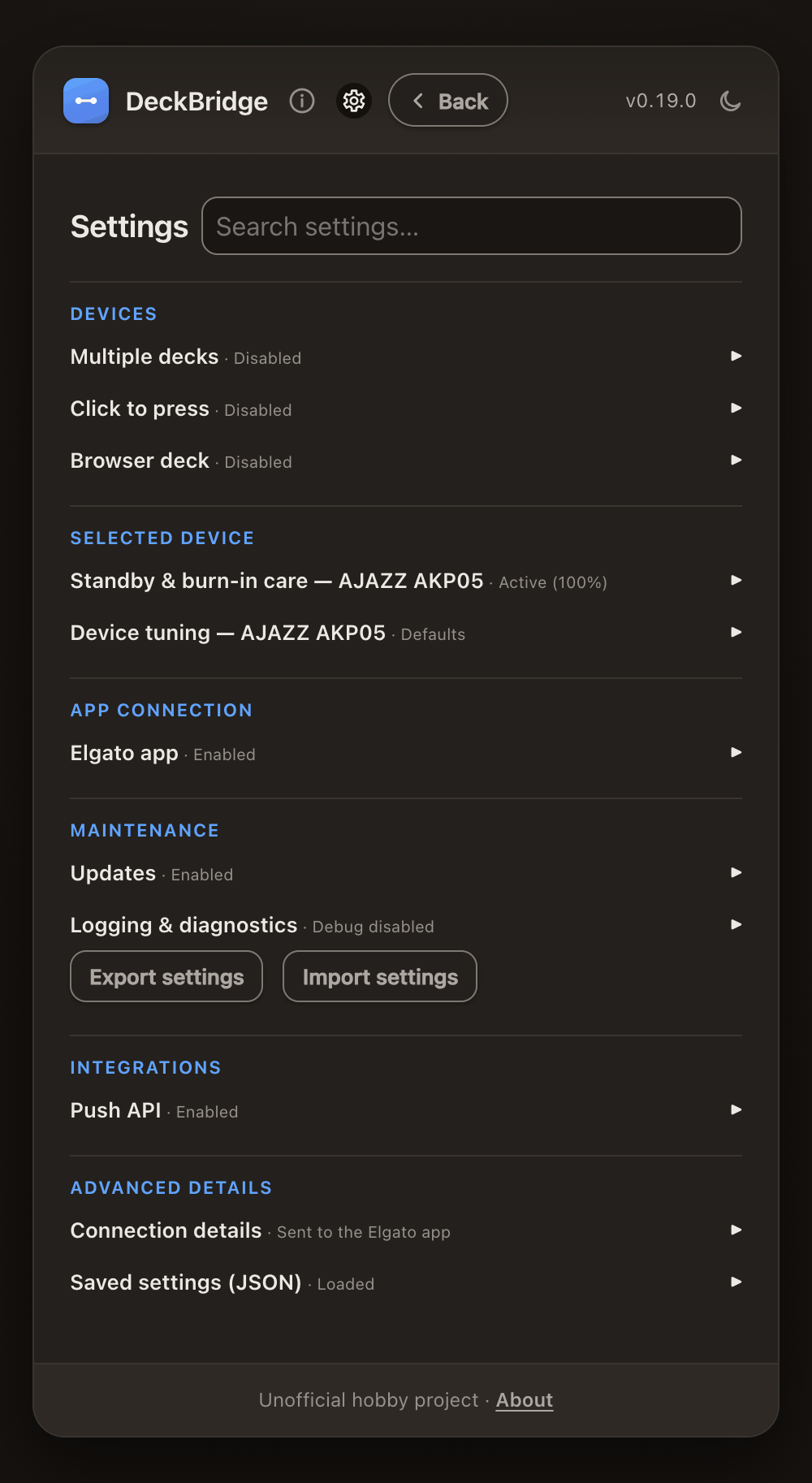
Settings, grouped and searchable
0.17 opened Settings on device identity details. 0.19 groups the panels by topic: devices, selected device, app connection, maintenance, integrations, and advanced details. Each collapsed panel shows its state, such as Enabled or Defaults.
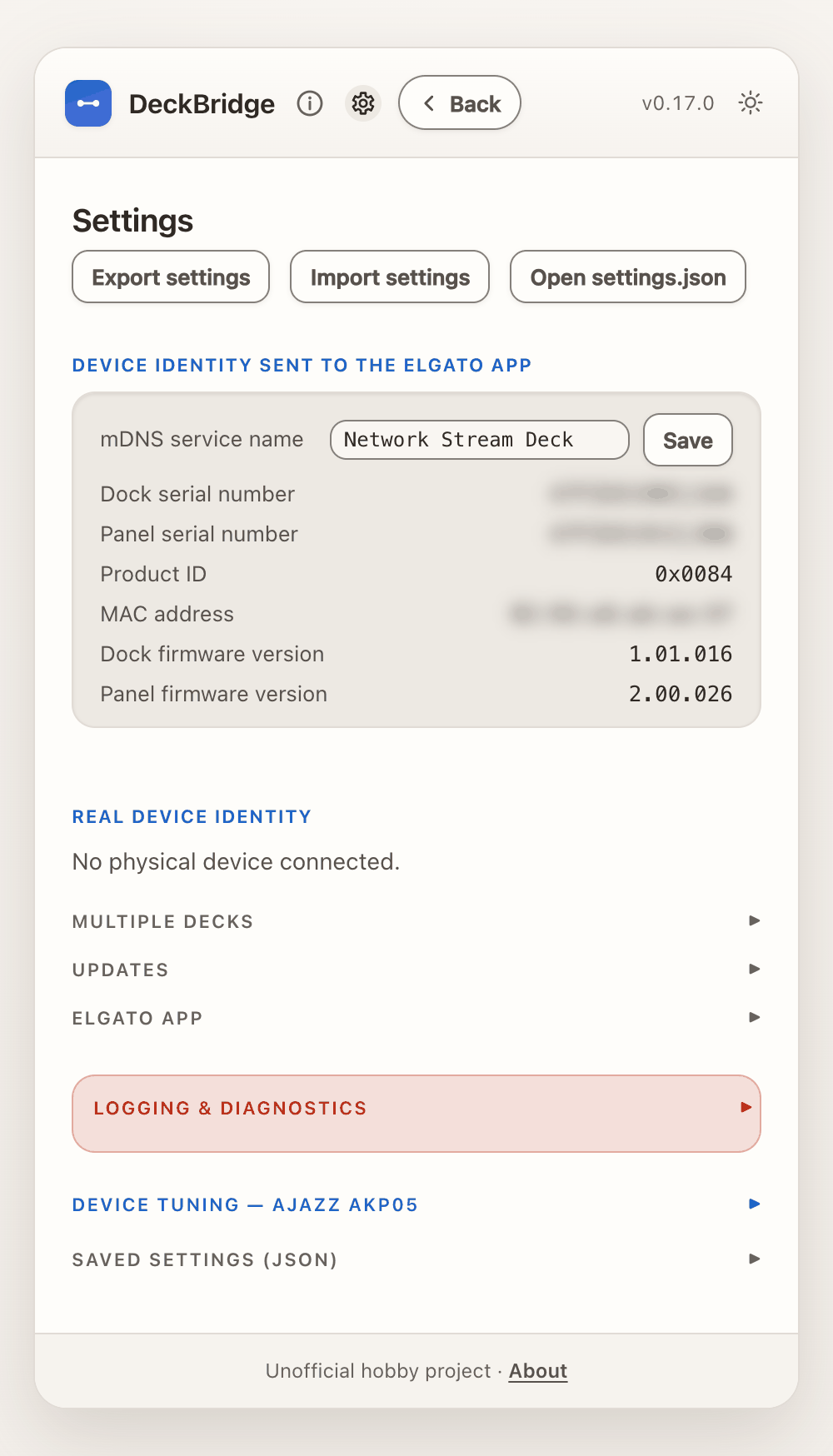
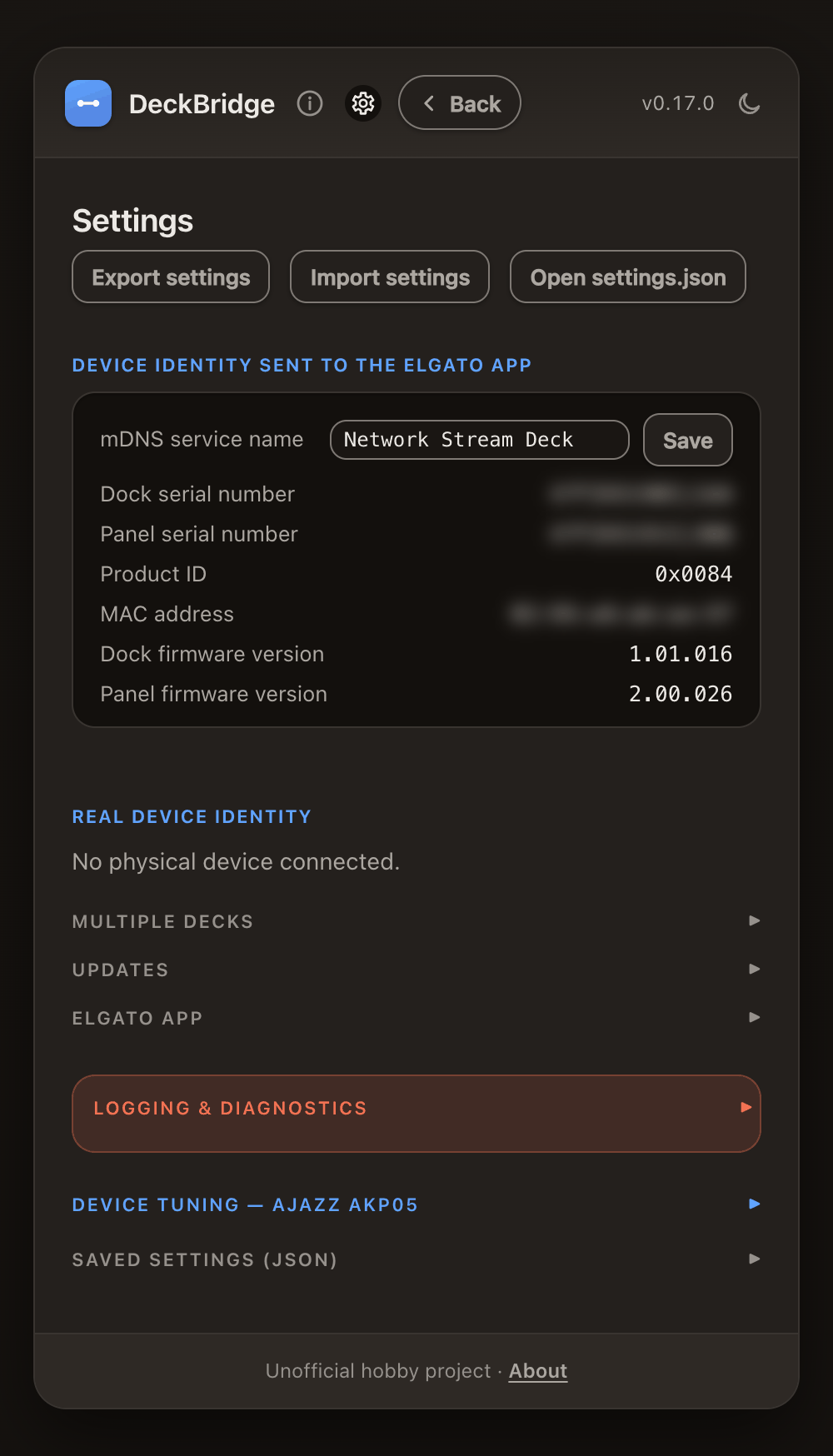
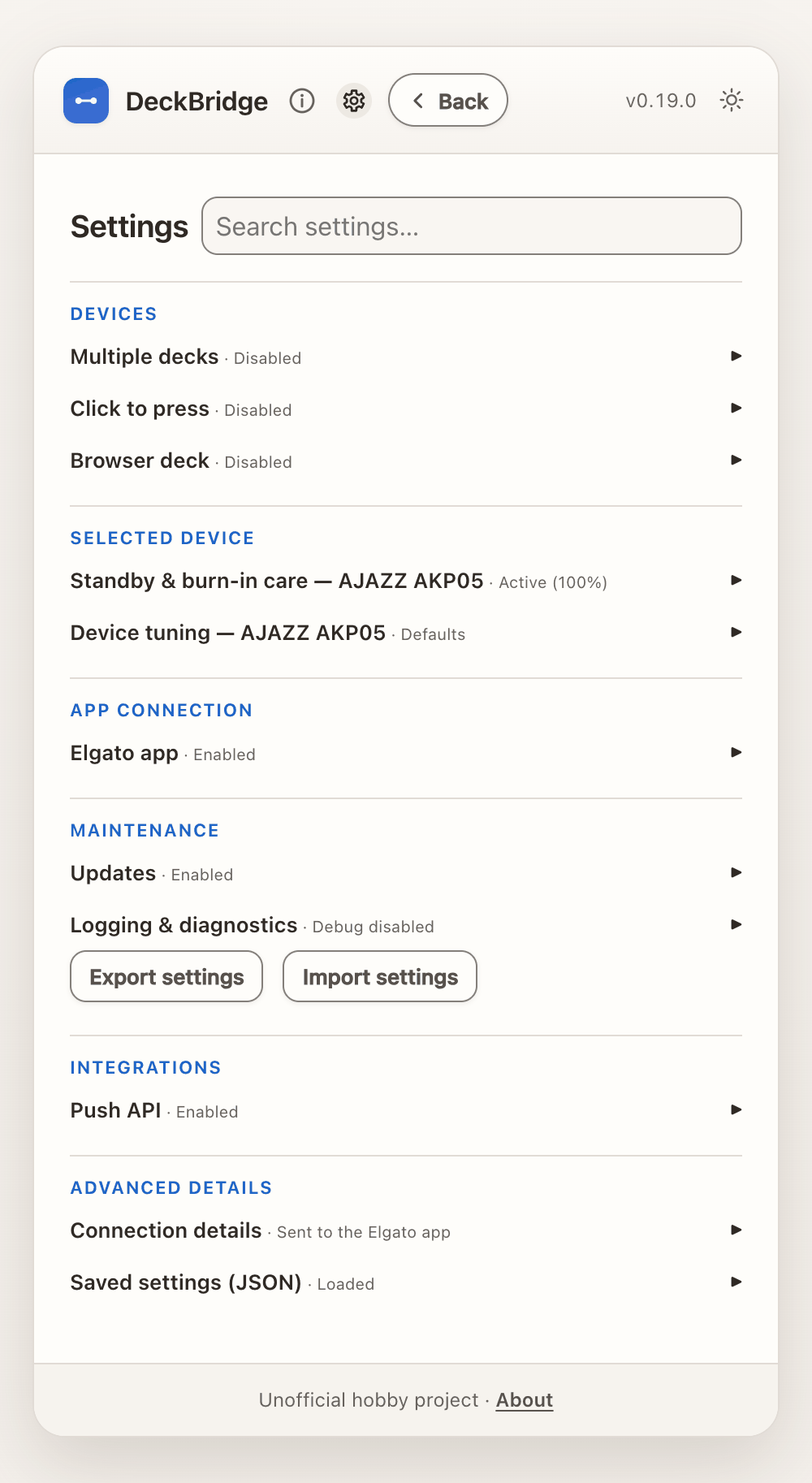
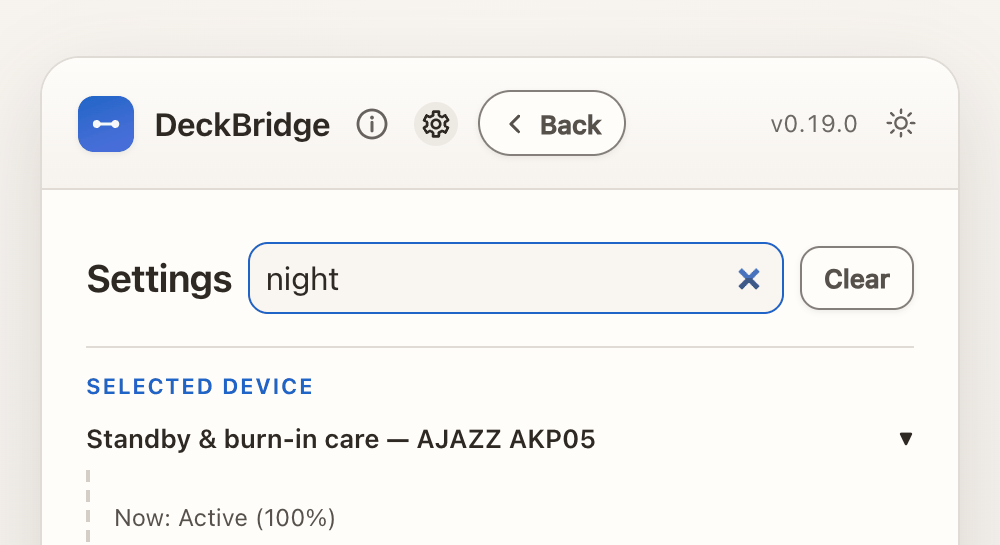
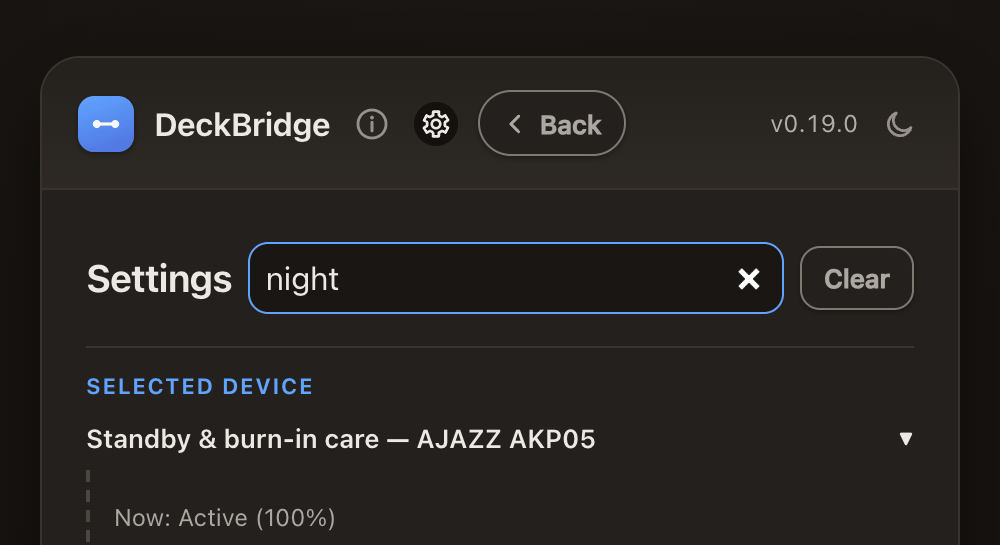
A search box filters panels as you type. Here, "night" finds the standby settings.
Docs open inside the app
Every docs link in the Web UI now has a second button. It opens the page in a dialog above the app, so you keep your place. Open in new tab still works.
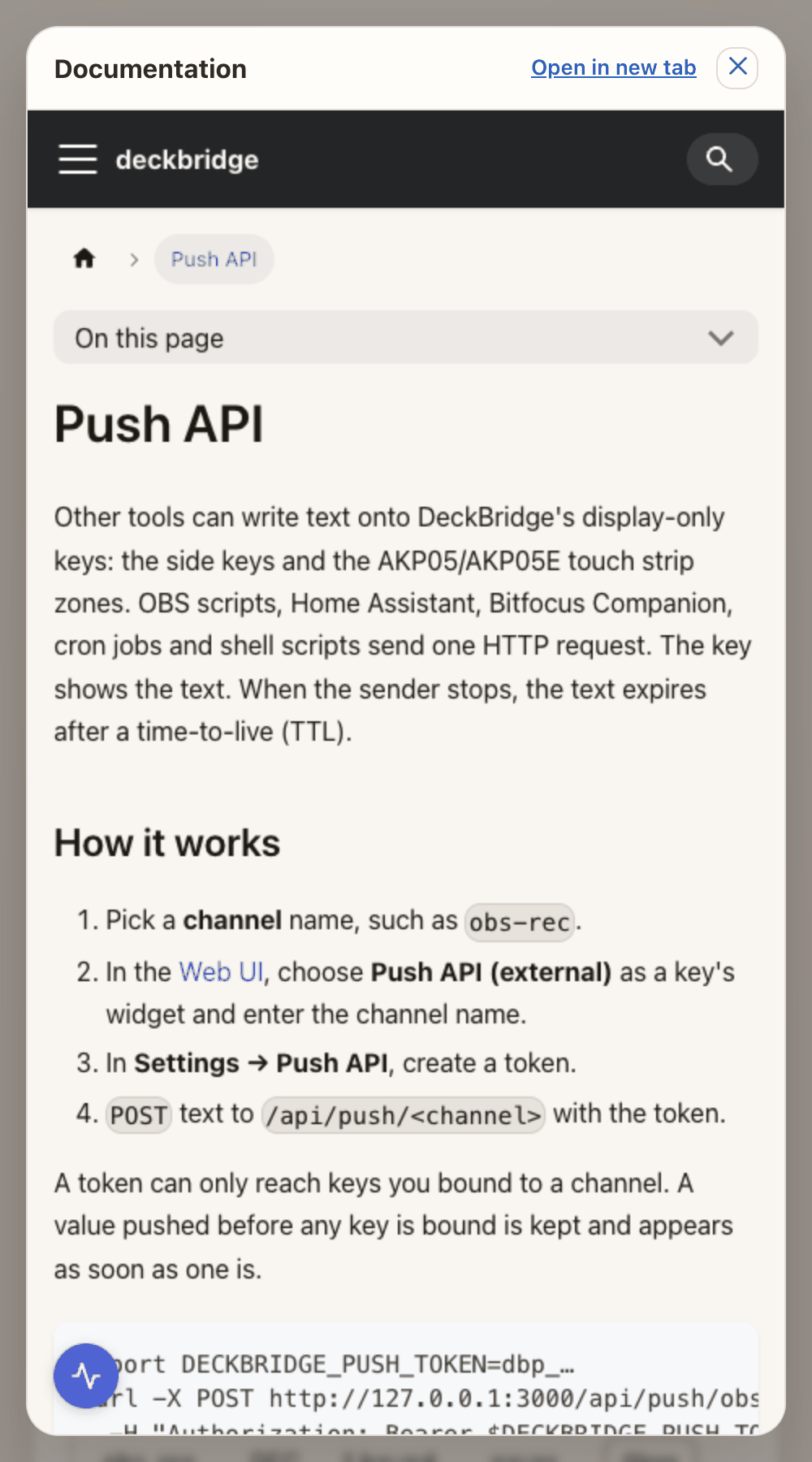
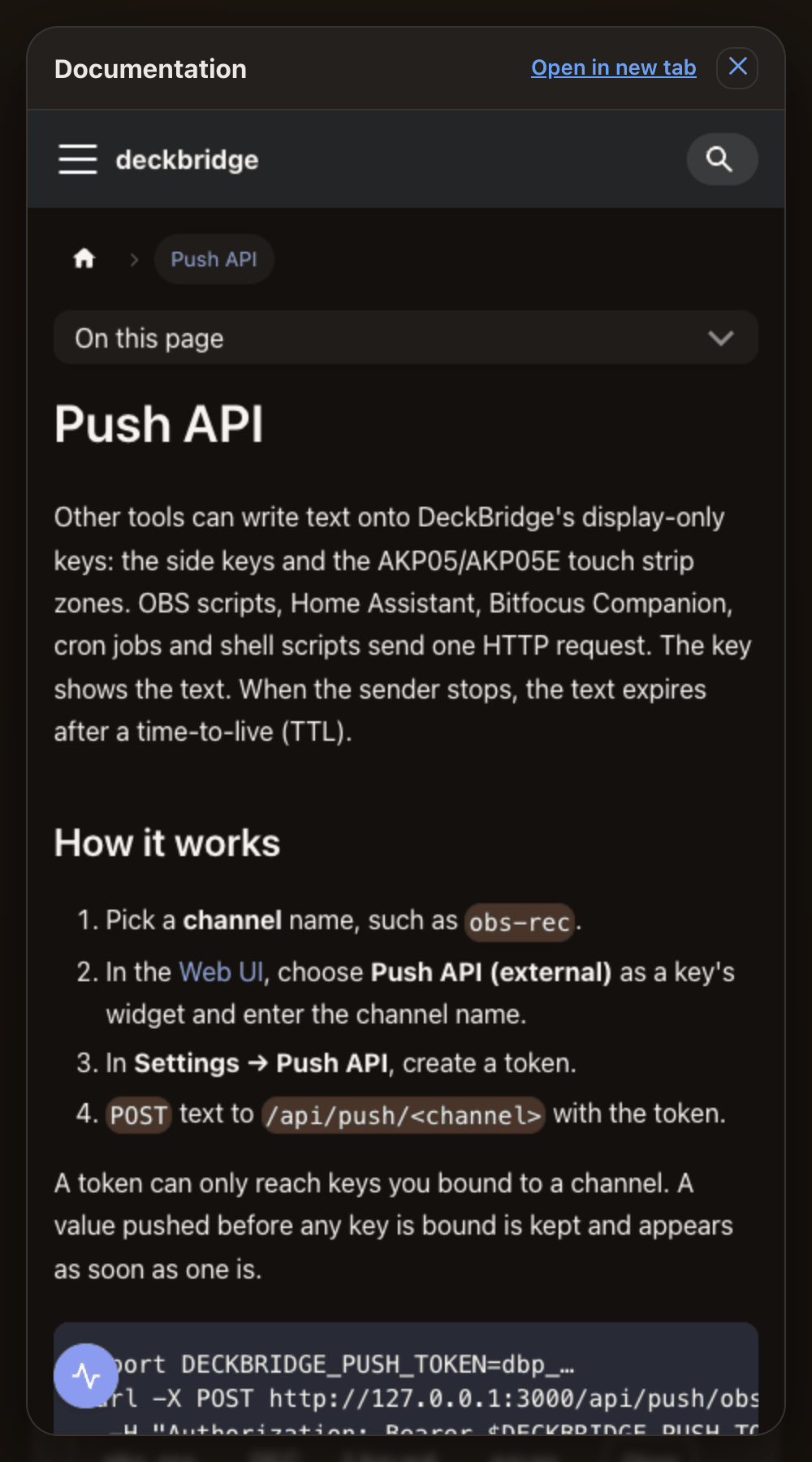
Docs links now go through a local /go/docs/<topic> redirect. The daily ping includes the topic names opened since the last ping. Nothing is recorded while the ping is off. See Privacy.
Fixes
- BMP output now pads rows correctly. Image widths not divisible by 4 no longer produce broken files.
- Touch-strip partial updates are tracked by exact rectangle, so two updates can't mix.
- Sockets, commands, caches, logs and previews now have firm limits. Shutdown saves settings and closes everything together.
- The side-keys help shows the right Stream Deck + grid for the AKP05.
Release status
0.19.0 includes everything above. Browser deck and Push API arrived in 0.18.0. Download 0.19.0.
Isolated test builds of 0.19.0 were scanned on VirusTotal before release. See VirusTotal results. Verify downloads with the release checksums.