What's new in 0.20 since 0.19
In 0.20, side keys can follow the page the Elgato app shows. Setups with more than one deck get tabs instead of a long stack of cards. When DeckBridge restarts the Elgato app for you, the Web UI now shows a countdown. The download is also about 100 kB smaller.
These changes ship in 0.20.0. All screenshots below come from the real Web UI in mock mode. A test client stands in for the Elgato app, and the key art is placeholder. "Before" shots come from 0.19.0. "After" shots come from 0.20.0.
Side keys that follow the Elgato page
A profile, page, or folder in the Elgato app can now have its own side-key and touch-strip layout. DeckBridge sees every key image the app sends, so it can tell which page is on screen. When you switch pages in the app, the side keys switch too.
- Show the page in the Elgato app.
- Open Follow Elgato pages and choose Save current page…. Give the page a name.
- Expand Saved pages and choose Edit layout. The page starts as a copy of the default layout.
Below, the deck shows the "Streaming" page. Its status displays show LIVE, a clock, and the date. The "Music" page has a different layout. Any page you did not save uses the default layout.
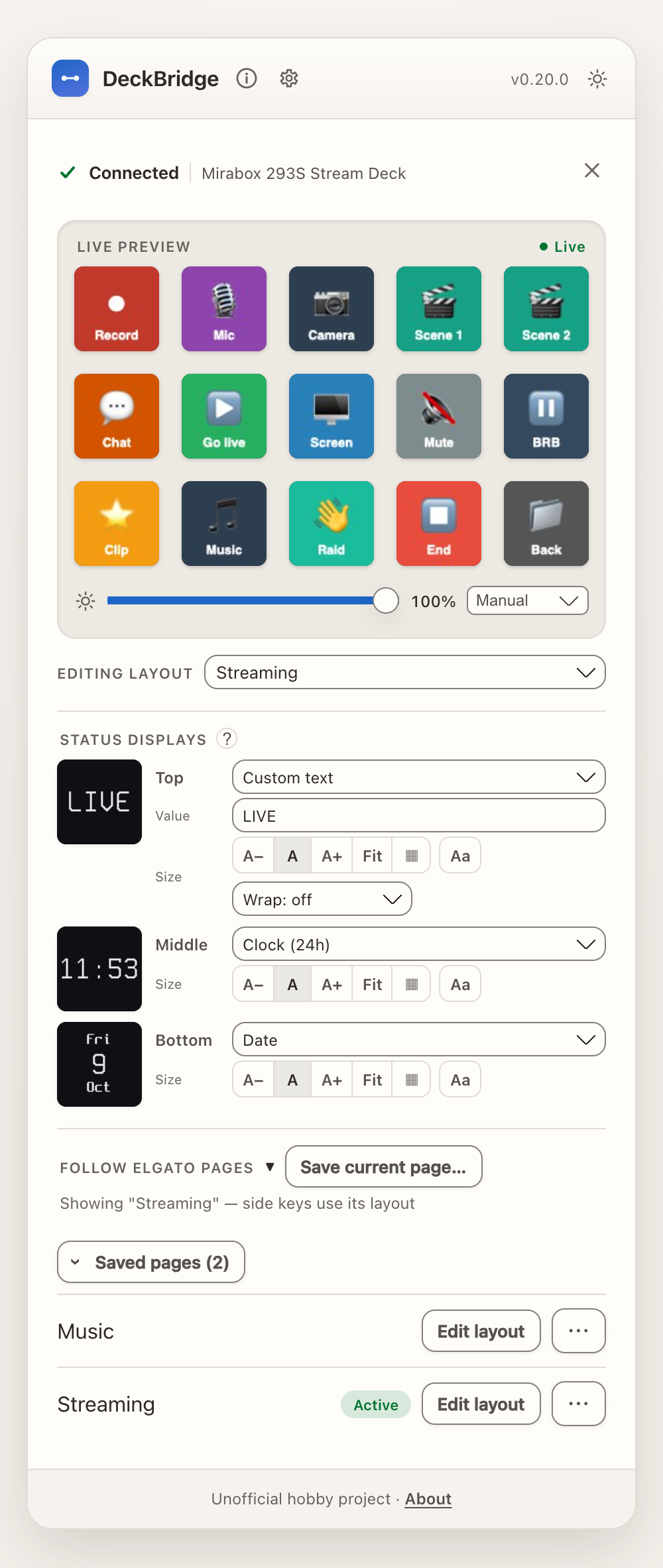
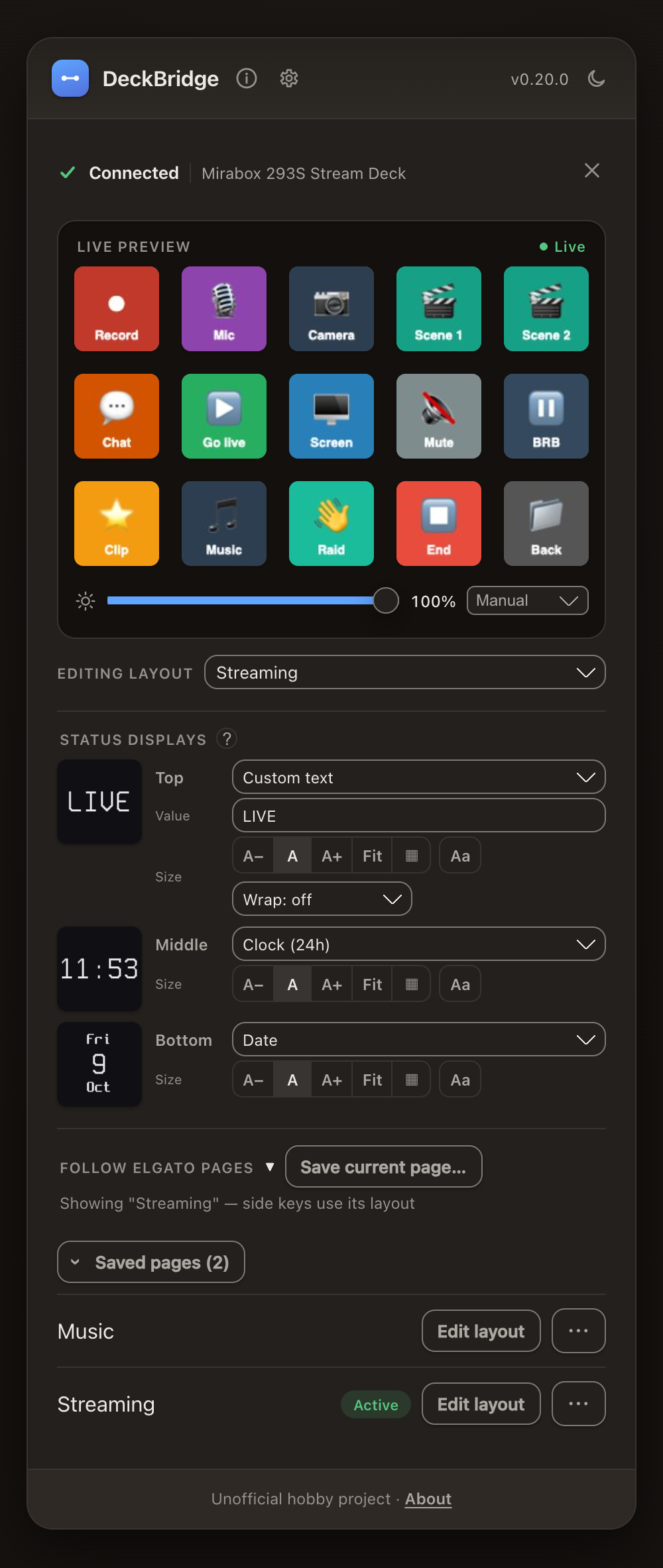
A page matches when enough of its keys show the same images as when you saved it. Each page's ⋯ button holds its options:
- Matching sets how many keys must match: Strict 100%, Normal 80%, Loose 60%.
- Ignored keys leaves out keys that change by themselves, such as clocks or animations.
- Re-capture saves the page images again, for example after an Elgato app update or a new key theme.
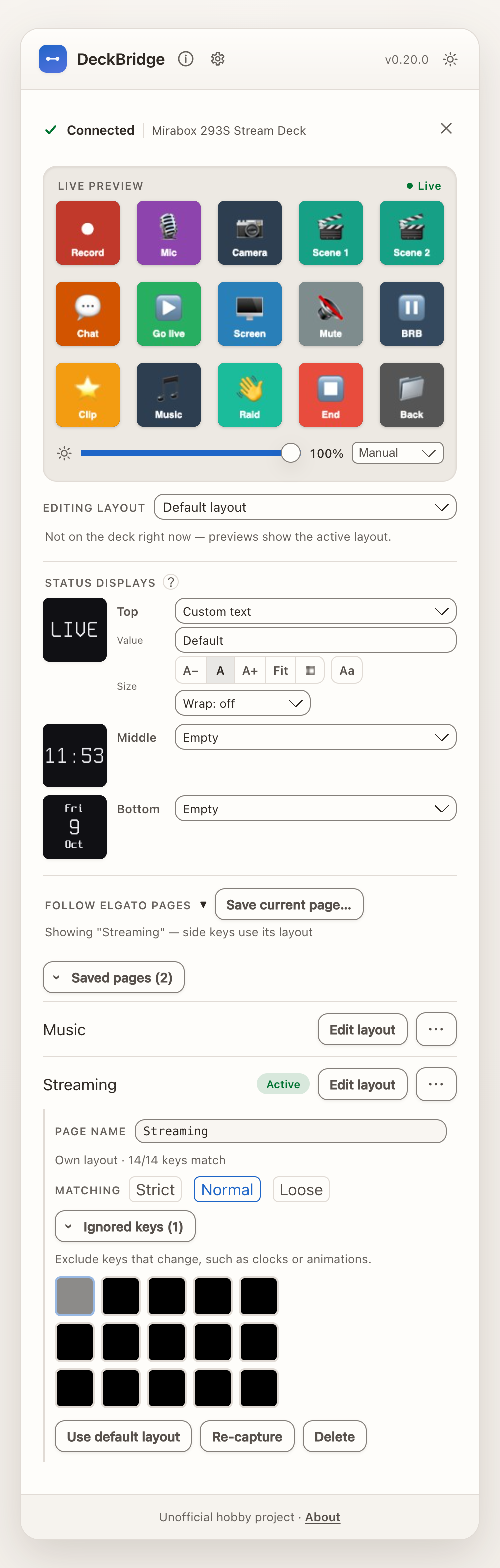
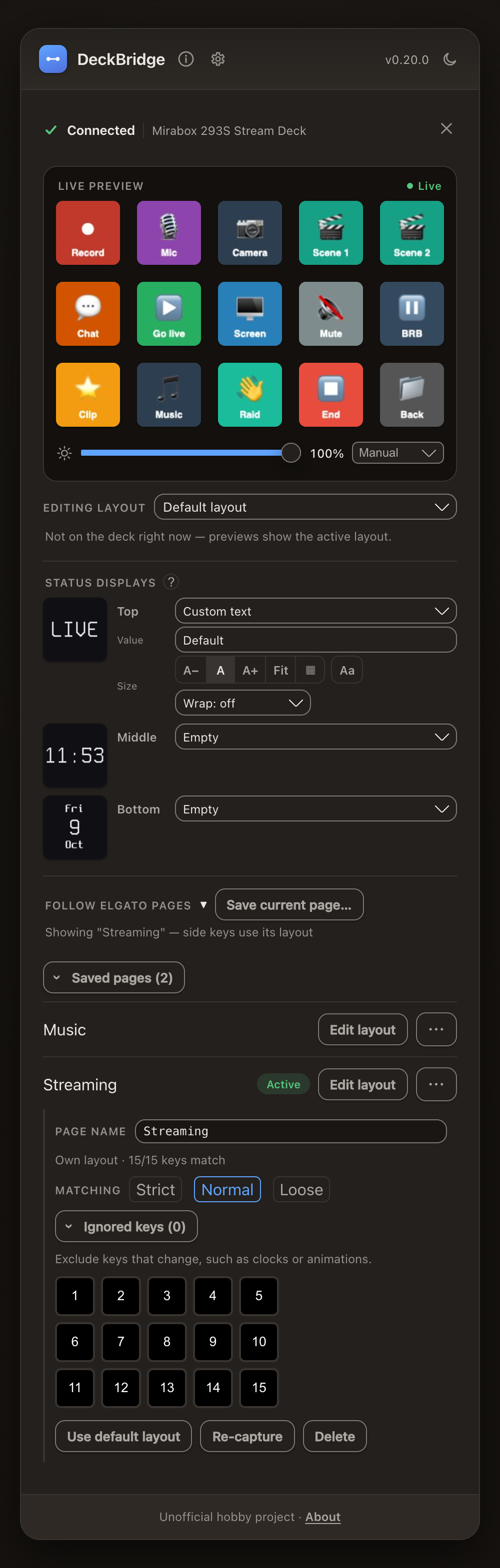
The section sits below the side-key settings and starts collapsed, so it stays out of the way until you need it. The layout switches about 0.2 seconds after the page finishes changing. Pages are saved per device, so each deck in a multi-deck setup follows its own page. See Layouts that follow the Elgato page.
Tabs for more than one deck
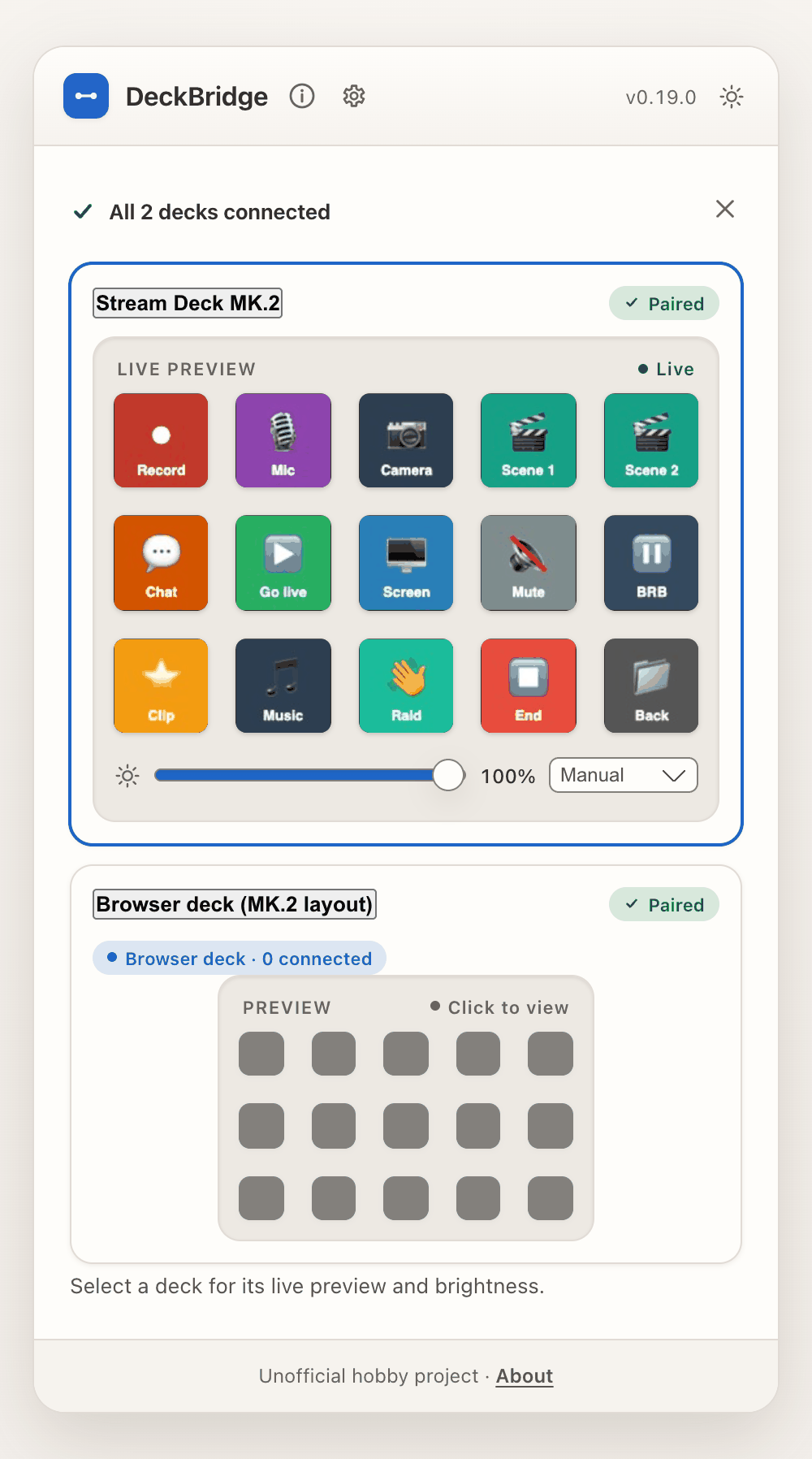
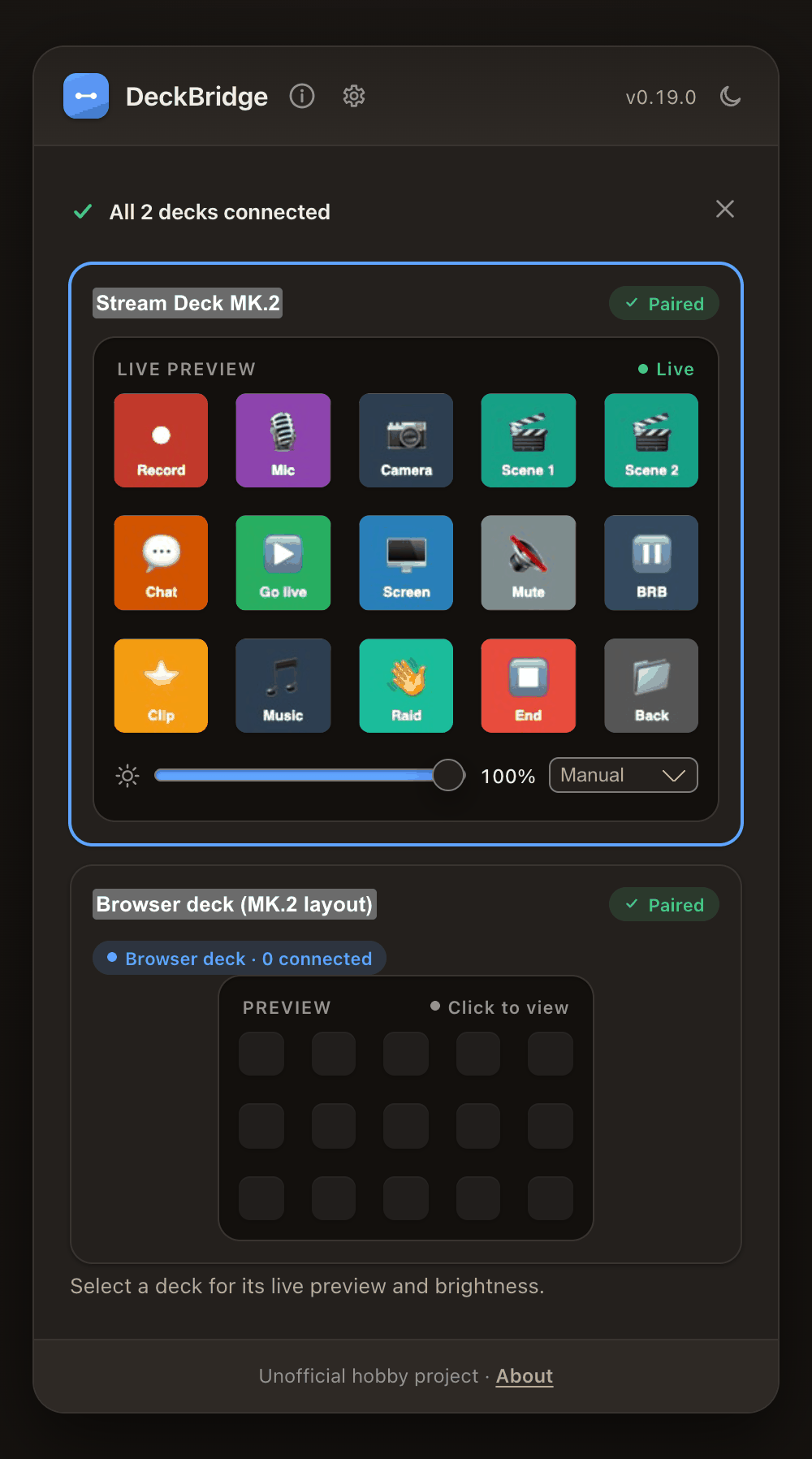
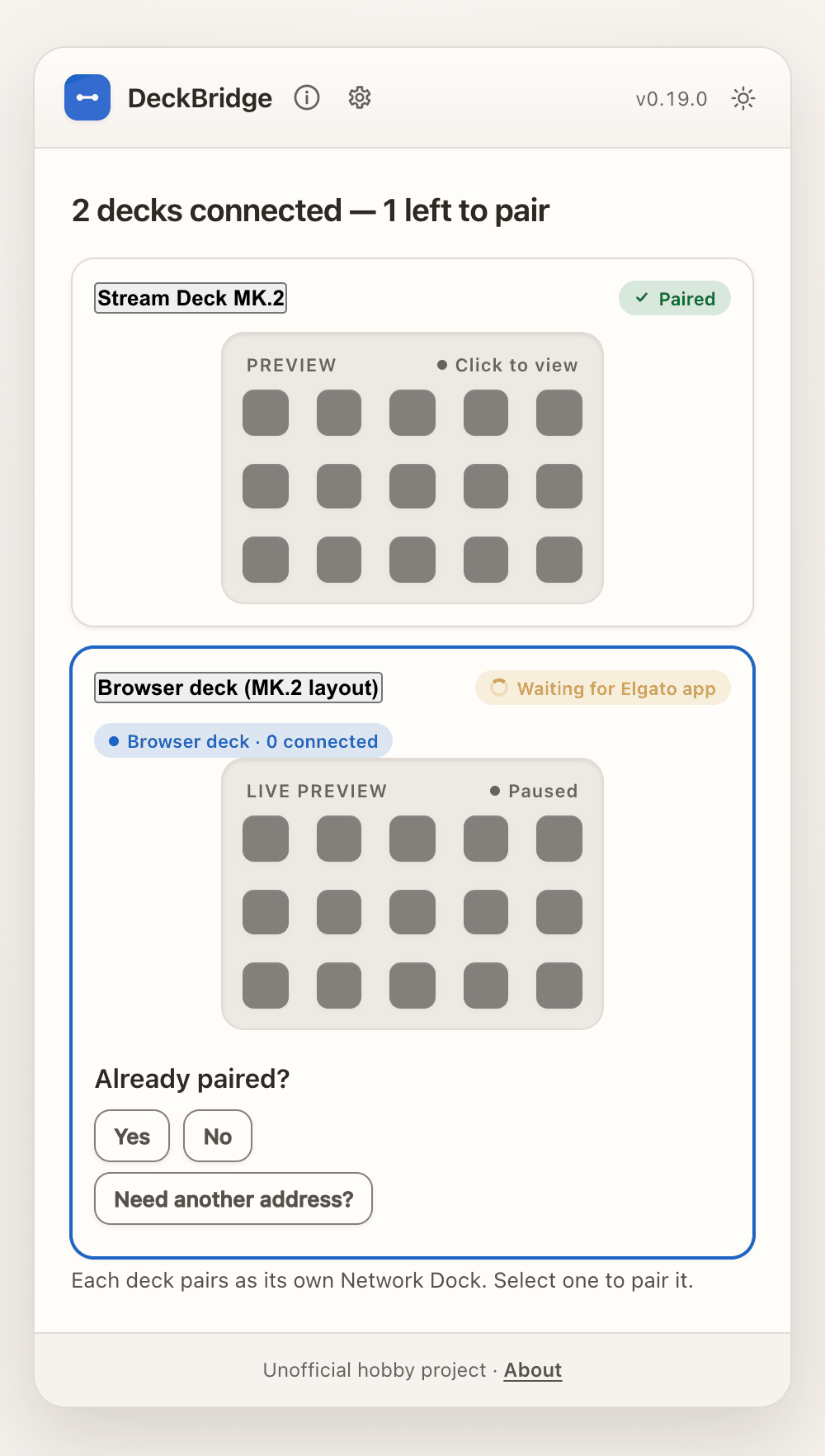
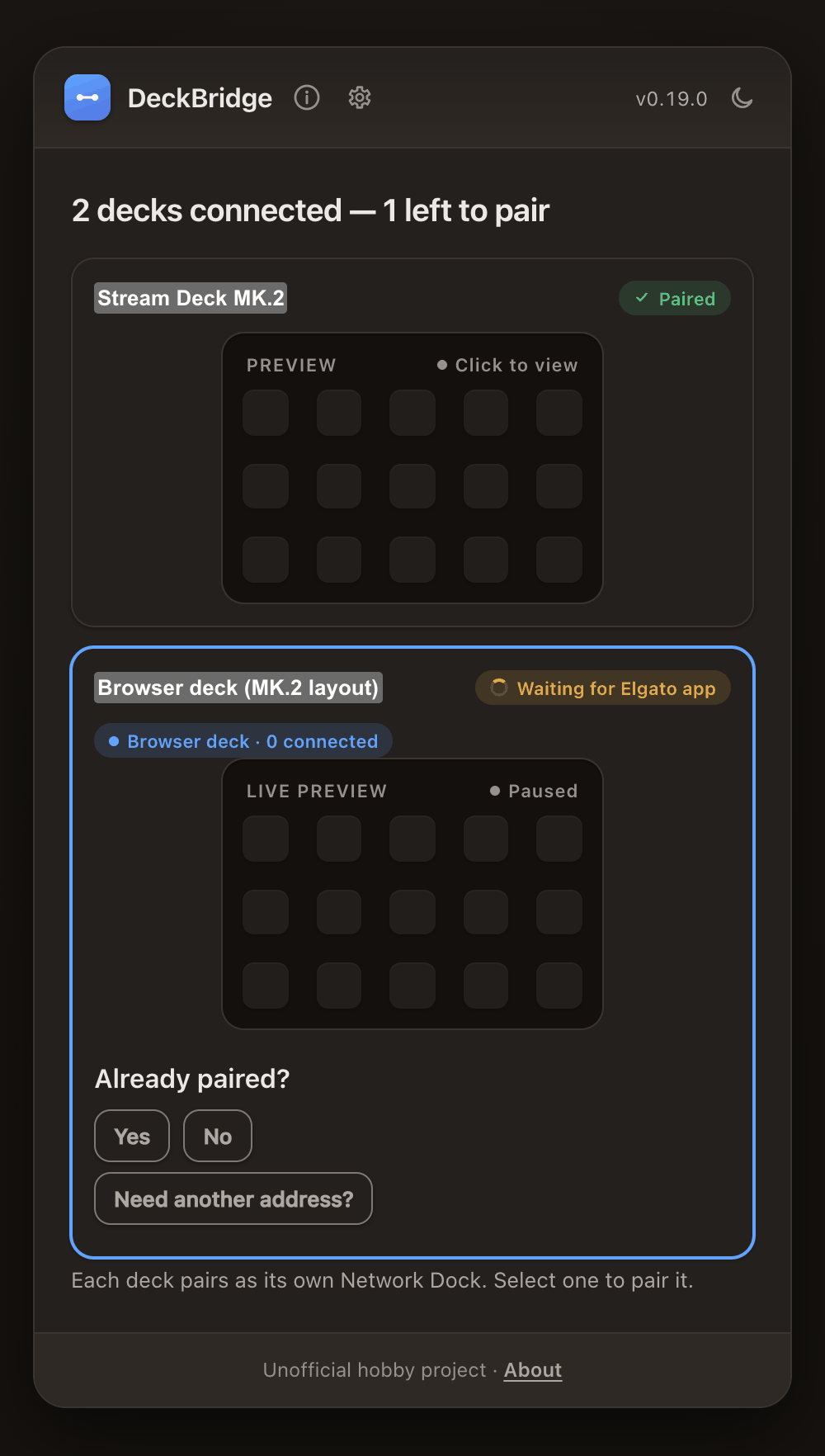
0.19 showed one card per deck, one below the other. Only the selected card had a live preview. The others showed a grey grid with Click to view. With two or three decks, the page got long.
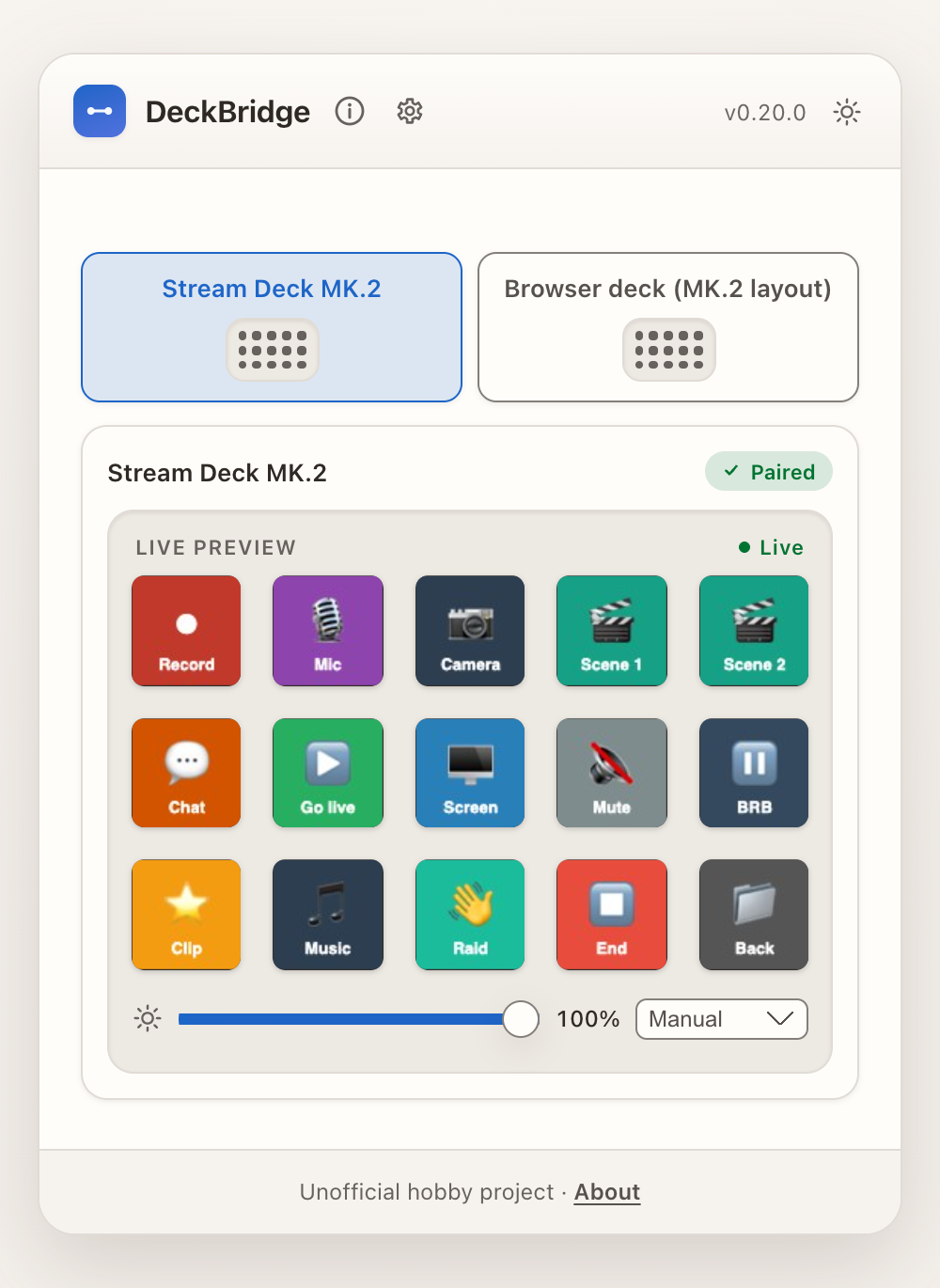
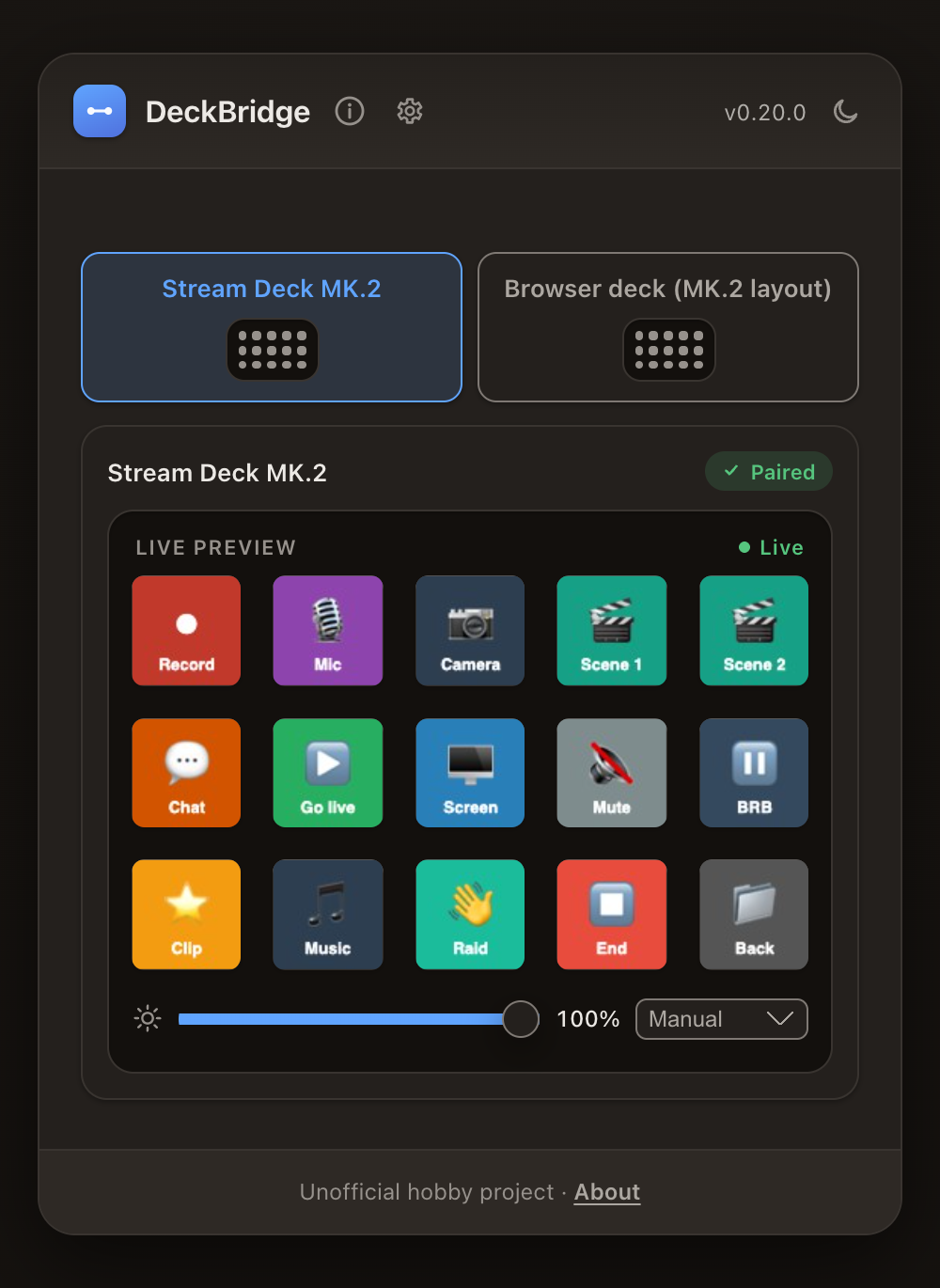
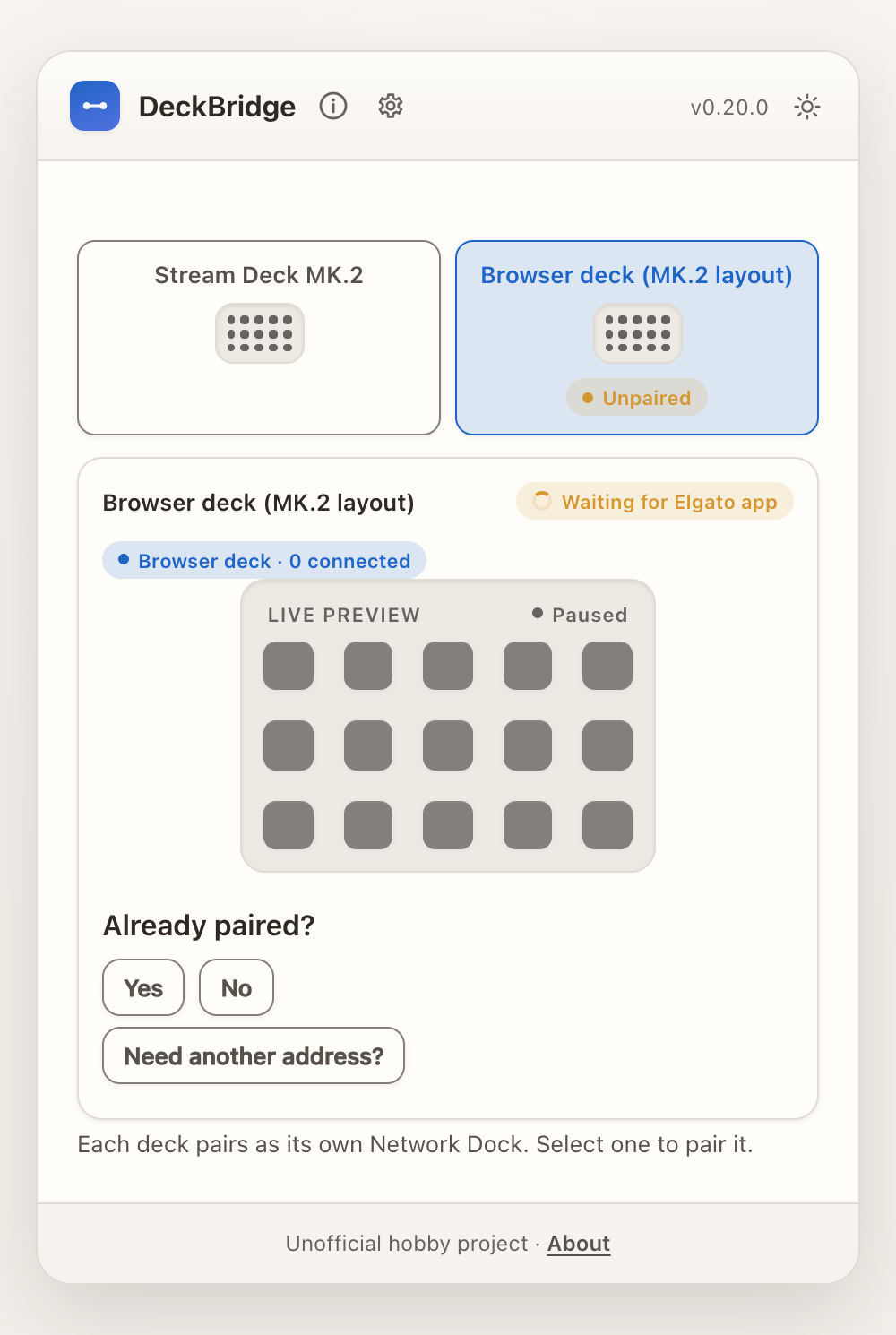
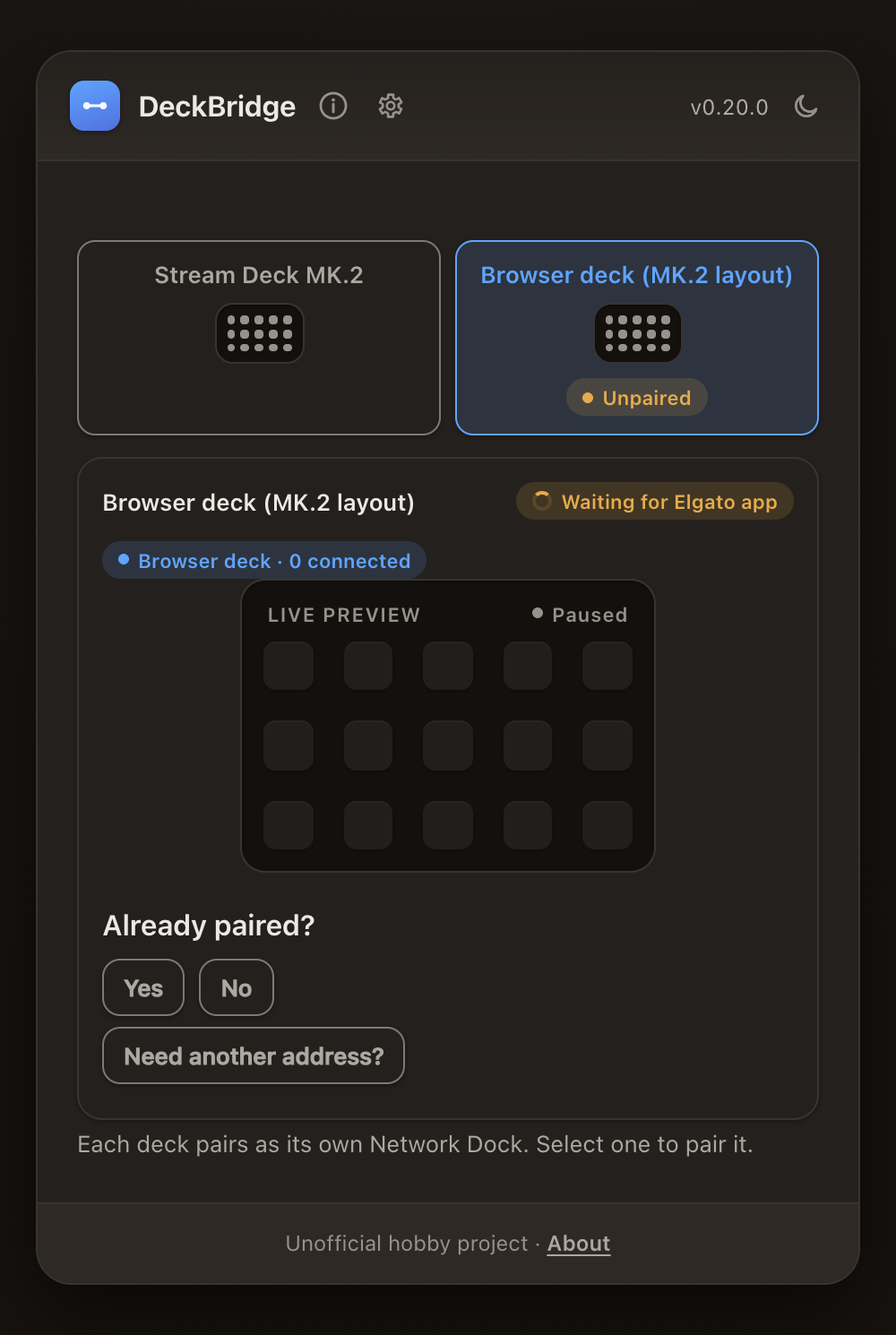
In 0.20, each deck has a tab at the top, with a small outline of its key layout. Click a tab, or use the arrow keys, to show that deck's live preview, brightness, and extra buttons.
A deck that still needs pairing shows Unpaired on its tab. Select it, and the panel shows the pairing steps for that deck only.
A countdown when the Elgato app restarts
The Elgato app only looks for network docks when it starts. A deck that appears while the app is already running stays blank. DeckBridge already restarts the app for a deck that was paired before, after a short grace delay (10 seconds by default).
In 0.19 this happened silently. The Web UI asked Already paired? at the same time, so you could press Restart Elgato app while DeckBridge was about to do the same thing. In 0.20, the Web UI shows the countdown and hides the manual controls until the restart is done or skipped.
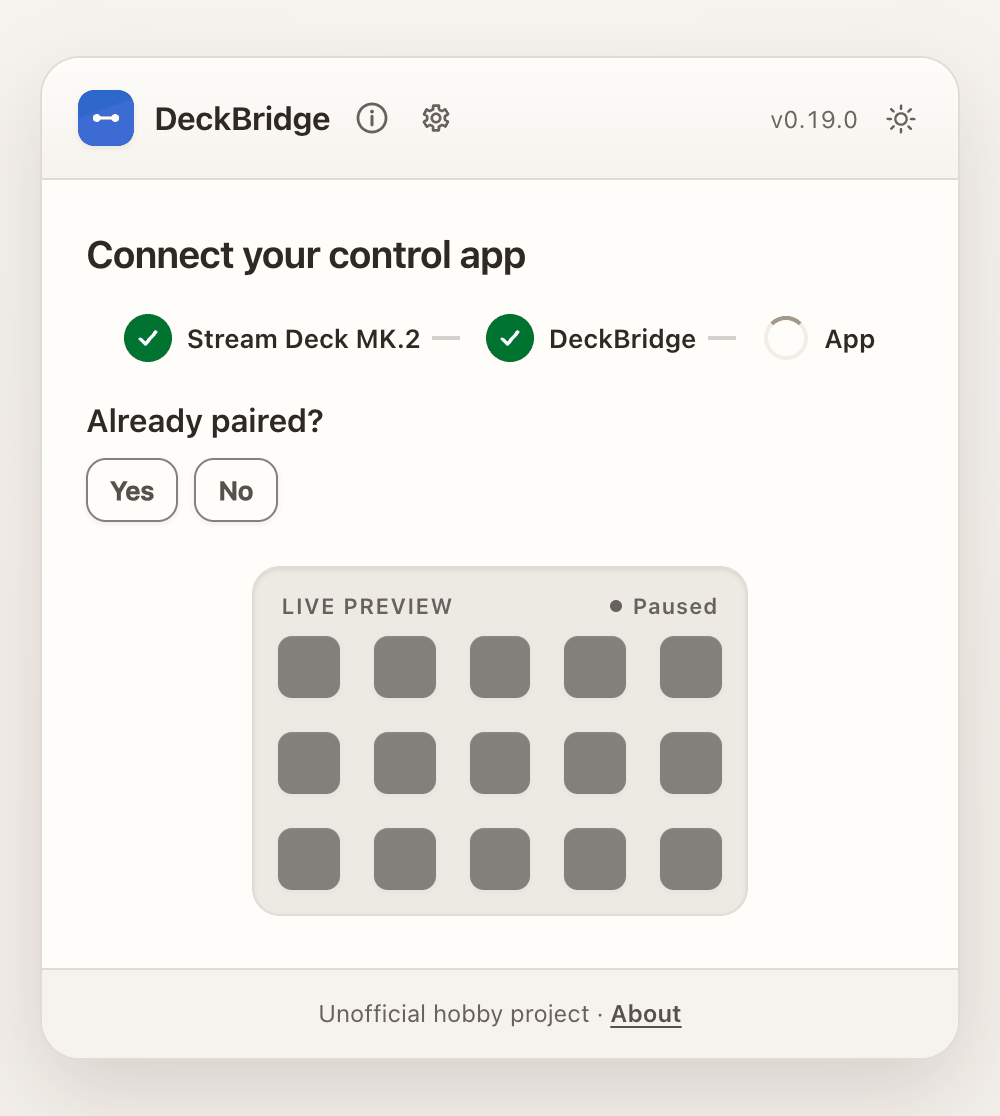
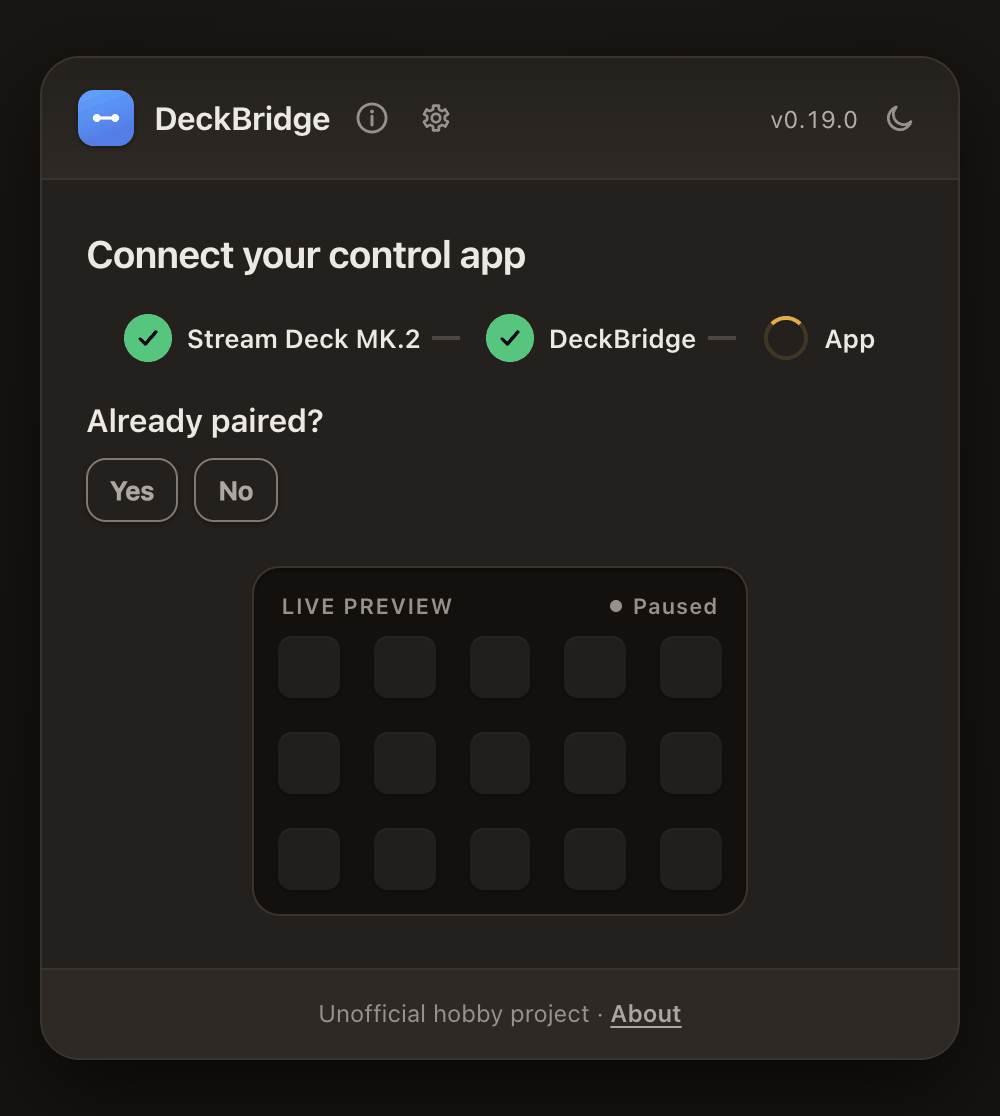
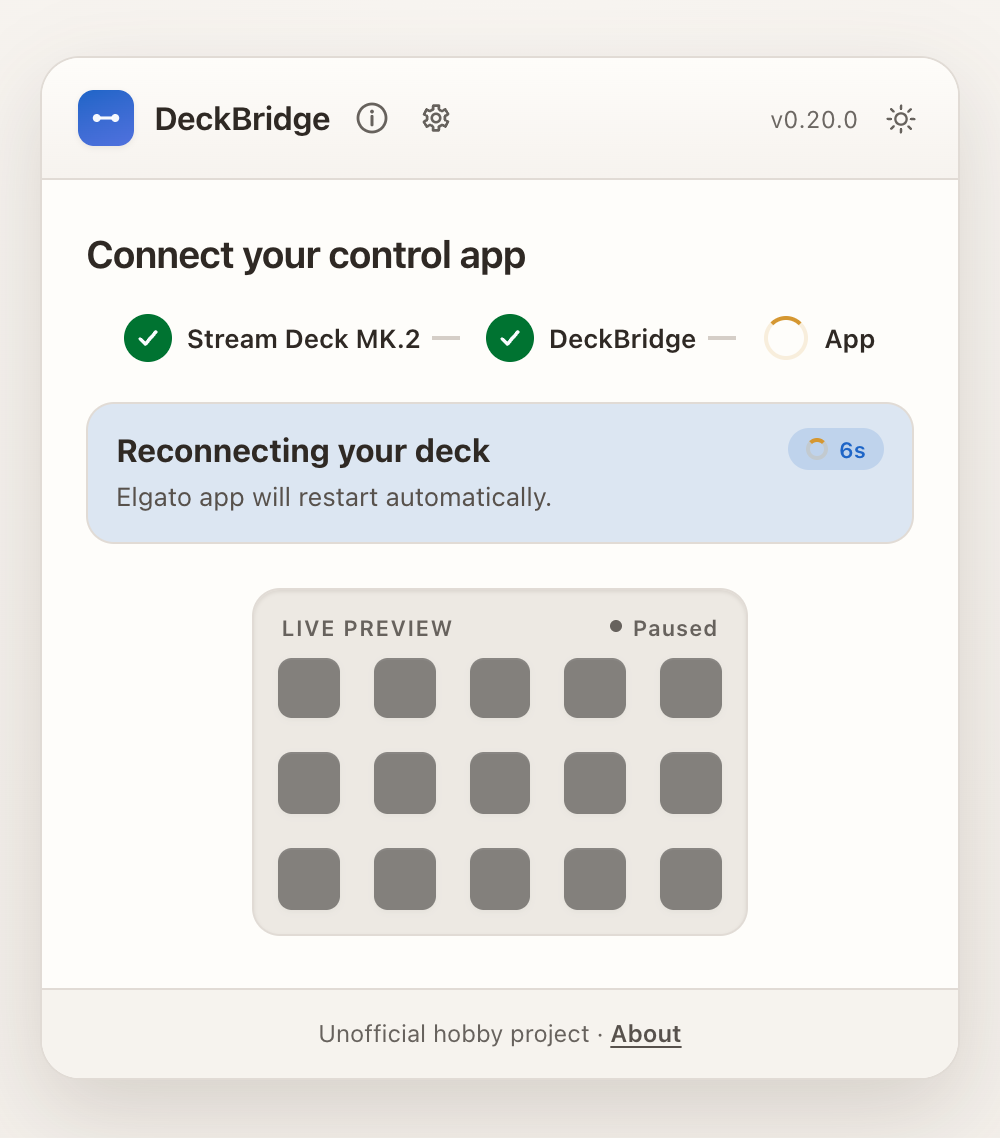
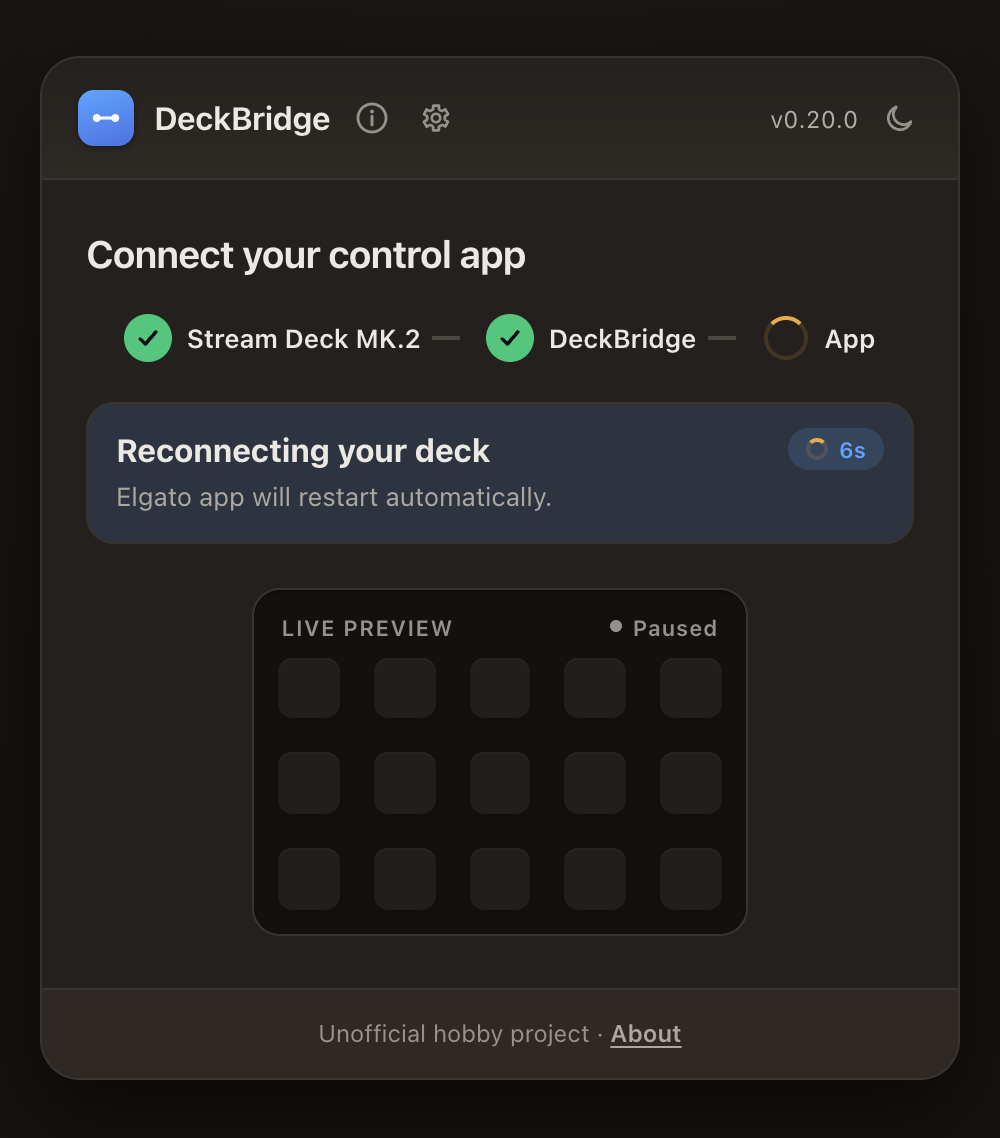
With more than one deck, the countdown appears only on the decks the restart is waiting for. A deck that was never paired keeps its pairing controls, because a restart does not add it to the Elgato app. The countdown also stays correct when the browser runs on another device with a different clock.
If the Elgato app is not running when the deck connects, there is nothing to restart. The app finds the deck when you open it. The Web UI then shows no countdown and keeps the pairing controls, including Open Elgato app.
The toggle and the grace delay are in Settings → Elgato app. See Restarting the Elgato app.
A smaller download
DeckBridge 0.20 is about 0.1 MB smaller than 0.19: 2.7 MB instead of 2.8 MB. Most of that size is the runtime it is built on, so the part we control is about 14% smaller. Speed is the same. The first launch after an update takes a moment longer while DeckBridge unpacks its files.
Three small Web UI fixes came along:
- Escape closes the pairing address window.
- The brightness slider has its intended compact look.
- Popovers for side keys stay inside the window on narrow screens.